Introduction
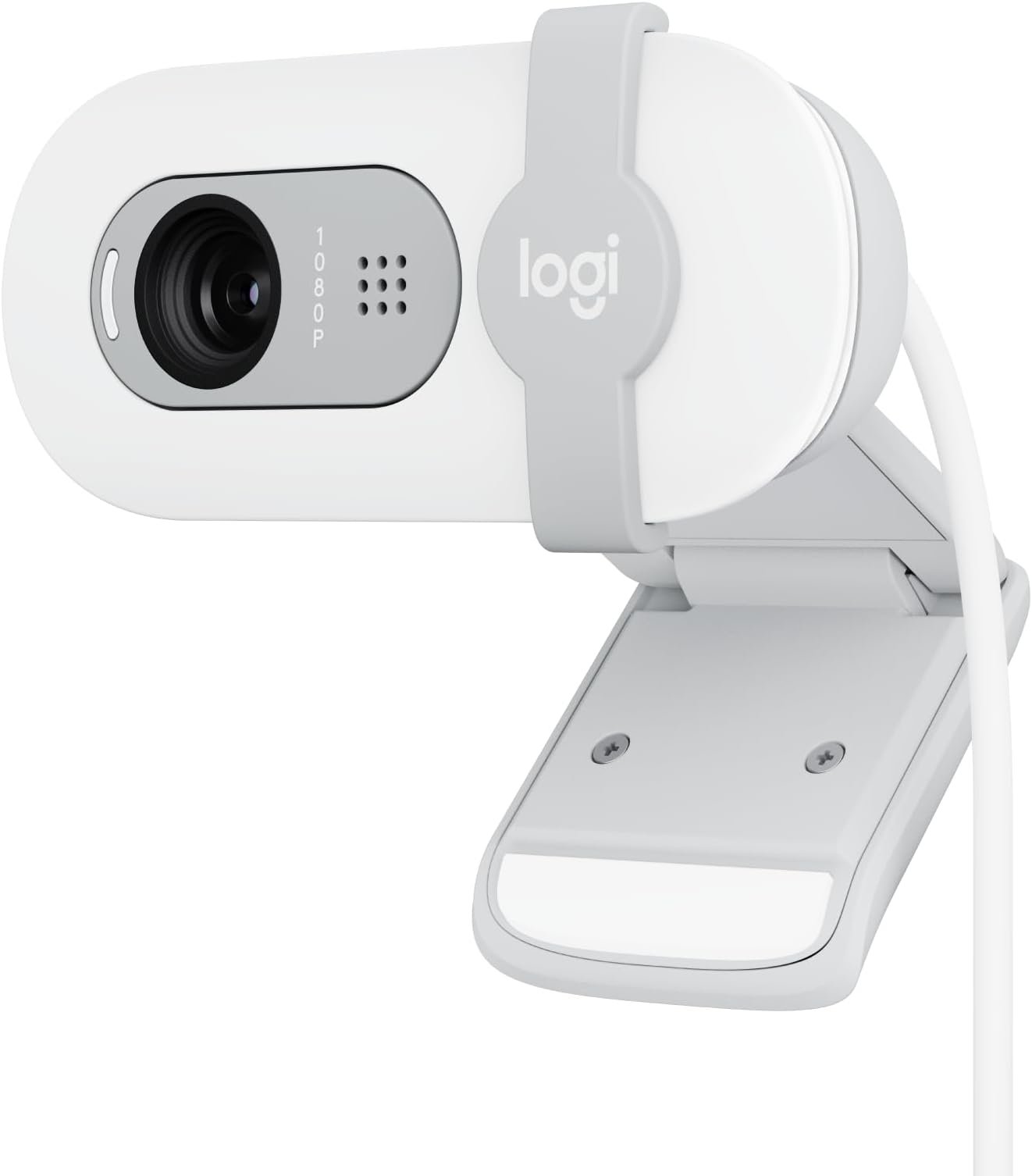
The Logitech Brio 101 is a simple USB webcam for video meetings on Windows, macOS, and ChromeOS computers in the United States. It records Full HD 1080p video at up to 30 frames per second and includes automatic light correction, a built-in microphone, and a privacy shutter.
For most Zoom, Microsoft Teams, Google Meet, and Webex users, the Brio 101 offers a clear step up from many built-in laptop cameras. It is best for one person sitting near the screen. It is less suitable for wide conference-room shots, advanced streaming, or users who need autofocus, 4K video, or a high-quality stereo microphone.

Logitech Brio 101 at a Glance
The Brio 101 focuses on the features that matter most for everyday meetings. It connects through USB, works without a separate camera driver on many computers, and mounts on a laptop screen or monitor.
| Feature | Logitech Brio 101 |
|---|---|
| Maximum video resolution | Full HD 1920 × 1080 |
| Maximum frame rate | Up to 30 fps |
| Connection | USB-A |
| Focus | Fixed focus |
| Microphone | Built-in mono microphone |
| Privacy control | Integrated privacy shutter |
| Light correction | Automatic light balance |
| Typical field of view | Approximately 58° diagonal |
| Mounting | Universal clip |
| Main use | Video calls, remote work, online classes |
| Camera software | Optional Logitech software may be available |
| 4K support | No |
These are documented product specifications. Actual image quality can change with room light, internet service, meeting software, computer settings, and the distance between the user and the camera.
The 58° field of view is fairly narrow compared with wide-angle webcams. That is useful when one person needs to stay centered and the camera should show less of the room. It can feel restrictive when two people share the frame.
Video Quality: What Full HD 1080p Means for Meetings
Full HD 1080p gives the Brio 101 enough detail for a clear head-and-shoulders image in common meeting apps. Its maximum output is 1920 × 1080 pixels at up to 30 frames per second.
The camera does not guarantee 1080p in every call. Meeting platforms often lower video quality to save bandwidth. The final image also depends on the computer, USB connection, application settings, and network conditions.
1080p compared with a laptop camera
Many laptop webcams still use lower-resolution sensors or produce soft images in dim rooms. A 1080p webcam can make facial detail, text on a nearby whiteboard, and hand movements easier to see.
Resolution is not the only factor. A poor light source can make a 1080p image look worse than a well-lit 720p image. Place a lamp or window in front of you rather than behind you. This gives the camera more useful light and reduces dark facial shadows.
The fixed-focus limitation
The Brio 101 uses fixed focus. The camera is designed for a normal desk distance rather than close-up product demonstrations.
This setup is convenient because there is no focus motor to hunt during a call. However, objects held close to the lens may look soft. If you often show documents, crafts, products, or writing, an autofocus webcam may be a better fit.

Microphone Performance and Meeting Audio
The built-in microphone lets you join meetings without a separate microphone. It is intended for speech from a person sitting near the computer.
A webcam microphone is not the same as a dedicated USB microphone or a headset. Room echo, air conditioners, keyboards, and nearby conversations can still enter the call. Software noise reduction may reduce some unwanted sound, but it cannot remove every problem.
For better audio:
- Sit close enough for the microphone to hear your voice clearly.
- Keep the camera away from loud fans and speakers.
- Use headphones if your voice echoes.
- Select the Brio 101 as the microphone in the meeting app.
- Run the app’s microphone test before an important call.
The camera’s microphone may work automatically after connection, but meeting software can keep using the laptop microphone instead. Always check the selected input device in Zoom, Teams, Google Meet, or Webex.
For private work calls, a wired or wireless headset may offer better voice isolation. The Brio 101 is convenient, but its microphone should not be treated as a studio recording solution.

Privacy Shutter and Physical Security
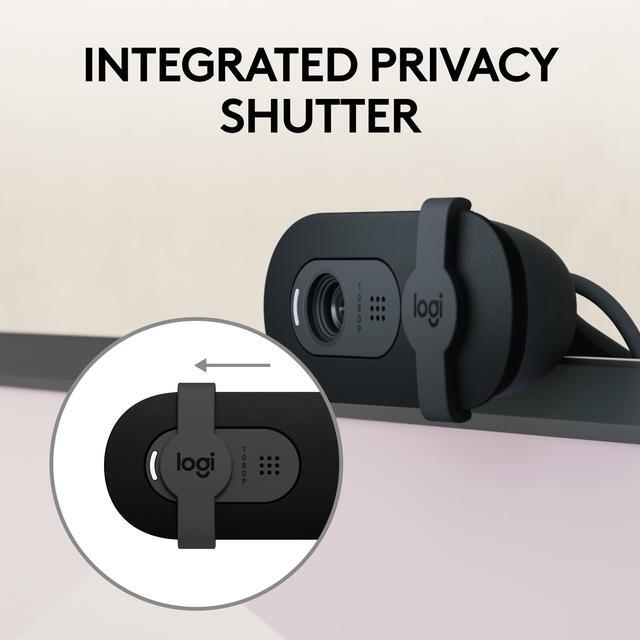
The Brio 101 includes a built-in privacy shutter that covers the lens. This provides a visible physical barrier when the camera is not in use.
A shutter is useful because software controls can be missed, changed, or affected by the wrong application setting. Slide the cover closed when you finish a call or when you do not want the lens exposed.
The shutter covers the camera lens, not the microphone. If you want to prevent audio capture, mute the microphone in the meeting app or disconnect the webcam. A separate headset with a physical mute switch can add another layer of control.
The shutter also helps prevent an accidental image from being shared when a meeting app opens the camera. Still, users should review application permissions and operating-system privacy settings.

Setup on a Windows, Mac, or Chromebook Computer
The Brio 101 is designed for plug-and-play use through USB. Before setup, confirm that your computer has an available USB-A port or use a compatible adapter or hub.
Basic setup steps
- Place the webcam on the top edge of your monitor or laptop display.
- Adjust the clip so the camera sits level and does not cover the screen.
- Connect the USB-A cable to the computer.
- Open the meeting application.
- Select Logitech Brio 101 as the camera.
- Select the Brio 101 as the microphone if you want to use its built-in audio.
- Preview the image and adjust your position, lighting, and camera height.
- Close the privacy shutter when the camera is not needed.
Many modern operating systems detect standard USB webcams automatically. If the camera does not appear, try another USB port, restart the meeting app, and test the webcam in the computer’s camera settings.
A USB hub can cause trouble if it has limited power or if several devices compete for bandwidth. Connect the camera directly to the computer when possible.

Best Placement for a Clearer Image
Camera placement affects the result as much as the webcam itself. Put the lens close to eye level. A camera that points up from a desk can create an unflattering angle, while a camera placed too high can make you look down during the call.
Aim the lens at the upper part of your chest and your face. Leave a small amount of space above your head. Keep your face near the center because the Brio 101 has a relatively narrow view.
Use front lighting. A window behind you can turn your face into a dark silhouette. If the room is dim, place a soft lamp behind or beside the monitor. Avoid a harsh lamp directly beside your face, as it can create strong shadows.
Clean the lens with a soft, dry microfiber cloth. Do not spray cleaner directly on the camera. Fingerprints and dust can create a hazy image that may look like a camera fault.
Brio 101 Compared With Common Webcam Alternatives
The right webcam depends on the meeting environment, not only on resolution.
| Need | Brio 101 fit | What may work better |
|---|---|---|
| One person at a desk | Good | A similar 1080p webcam |
| Basic remote work | Good | A webcam with better low-light processing |
| Two people in one frame | Limited | A wider-angle webcam |
| Product demonstrations | Limited | An autofocus webcam |
| Professional voice recording | Limited | A headset or dedicated USB microphone |
| 4K video or cropping | Not suitable | A 4K webcam |
| Travel with older computers | Check ports | A USB-C model or adapter |
| Privacy between calls | Good | A webcam with a physical shutter |
The Brio 101 is not the same product as Logitech’s higher-end Brio models. The name can cause confusion. Check the exact model before buying if you need 4K video, autofocus, a wider field of view, or more advanced controls.
A 1080p webcam is usually enough for normal meetings. Paying more makes sense when a specific feature solves a real problem, such as poor lighting, multiple people in the room, close-up work, or professional audio.

Troubleshooting Common Brio 101 Problems
Most setup problems come from the USB connection, application selection, privacy controls, or operating-system permissions.
The camera does not appear
Try these steps in order:
- Confirm that the privacy shutter is open.
- Unplug and reconnect the USB cable.
- Try a different USB port.
- Close other apps that may be using the camera.
- Restart the meeting application.
- Restart the computer.
- Check camera permissions in the operating system.
- Test the webcam in another camera app.
If it works in one application but not another, the problem is likely the second app’s camera selection or permission setting.
The image is dark
Move the main light in front of you. Reduce bright light behind your head. Then check whether the meeting app has its own exposure or brightness control.
Automatic light correction can help with moderate changes in brightness. It cannot fully fix a room that is very dark or a strong window directly behind you.
The image looks soft
Check the lens for dust or fingerprints. Move back to a normal desk distance. Since the Brio 101 uses fixed focus, it may not sharpen objects held close to the camera.
The microphone does not work
Confirm that the Brio 101 is selected as the input device. Check the operating system’s microphone permission and the meeting app’s mute button. If other people hear an echo, use headphones or mute the webcam microphone and select a headset instead.
The video freezes
Reconnect the USB cable, close unused video applications, and test a different USB port. A weak network can also make video appear frozen to other participants even when the camera is working normally.

Who Should Buy the Logitech Brio 101?
The Brio 101 is a sensible choice for a U.S. remote worker, student, or home user who wants a basic Full HD webcam with a physical privacy shutter. It is particularly useful when the built-in laptop camera looks soft or sits at an awkward angle.
It is less suitable for users who need:
- Autofocus for close-up objects
- A wide view for several people
- 4K video
- Strong background separation
- High-end microphone quality
- Advanced image controls
- USB-C without an adapter
The most important buying decision is not the word “1080p.” Ask how many people the camera must show, how much light the room has, whether you need close-up focus, and whether the built-in microphone is enough.

Logitech Brio 101 Meeting Checklist
Use this short checklist before an important call:
- Open the privacy shutter.
- Select the Brio 101 as the camera.
- Select the correct microphone.
- Put the lens near eye level.
- Face a lamp or window.
- Keep the background light lower than the light on your face.
- Check that your face is centered.
- Wear headphones if you hear an echo.
- Close unrelated apps that may use the camera.
- Test the preview before joining.
These small checks often improve a meeting more than changing the camera resolution. Good light, correct device selection, and clear audio create the largest practical gains.
Frequently Asked Questions
Is the Logitech Brio 101 good for Zoom meetings?
Yes. It supports Full HD 1080p video and can work with Zoom when the computer and app recognize the USB camera. Zoom may reduce the actual stream quality based on account settings, bandwidth, or meeting conditions.
Does the Brio 101 work with Microsoft Teams and Google Meet?
It is designed to work with common video-calling platforms, including Microsoft Teams and Google Meet, when used with a compatible computer. Select the camera and microphone inside the individual app.
Does the Logitech Brio 101 have autofocus?
No. The Brio 101 uses fixed focus. It is made for normal desk-distance calls, not frequent close-up demonstrations.
Does it have a privacy cover?
Yes. The webcam includes an integrated privacy shutter that physically covers the lens. It does not mute the microphone.
Does the Brio 101 record in 4K?
No. Its maximum documented video resolution is Full HD 1920 × 1080 at up to 30 fps.
Can I use the Brio 101 with a USB-C laptop?
The webcam uses USB-A. A USB-C laptop may need a compatible USB-C adapter, dock, or hub. Check that the adapter supports standard USB data, not only charging.
Why does my meeting app show a lower resolution?
The app may limit resolution because of bandwidth, account settings, computer performance, or meeting conditions. Confirm the app’s video settings and test the webcam in another application.
Conclusion
The Logitech Brio 101 is a straightforward Full HD webcam for everyday meetings in the United States. Its strongest features are 1080p video, automatic light correction, USB plug-and-play setup, a built-in microphone, and a physical privacy shutter.
Choose it when one person will sit at a desk and you want a clearer image than a basic laptop webcam provides. Choose another model when you need autofocus, a wide-angle view, 4K video, or more capable audio. Before buying, check your computer’s USB port and decide whether the camera’s fixed focus and narrow view match your meeting setup.