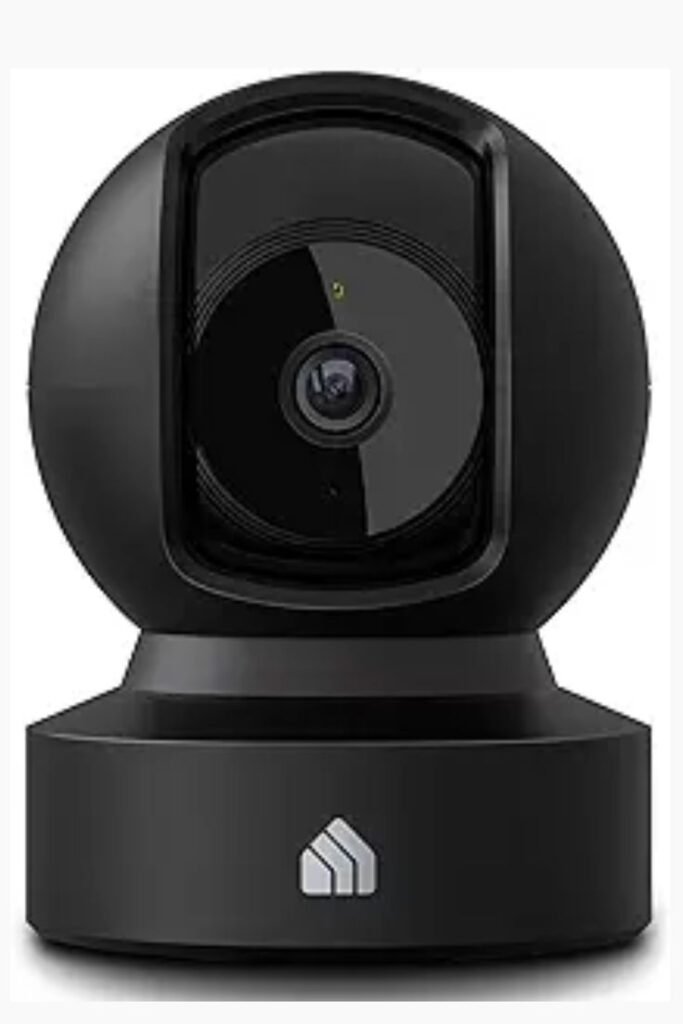
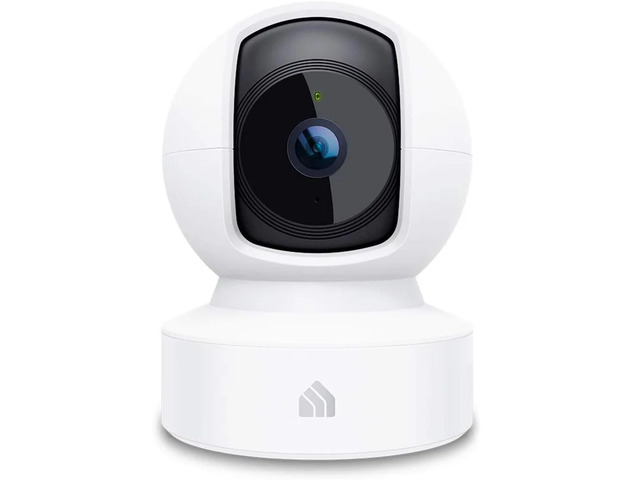
The Kasa 2K+ Indoor Pan/Tilt Wired Security Camera is an indoor Wi-Fi camera that sends live video to the Kasa app. It uses a power cable for continuous power, while Wi-Fi carries video and alerts to your phone. Its motorized lens can turn from side to side and tilt up or down, helping you view more of a room than a fixed camera can.
The camera is designed for homes in the United States. It can help watch a living room, entry area, nursery, home office, or pet area. It is not a replacement for a monitored alarm system, a fire alarm, or an outdoor security camera.
Introduction
The camera works through four main parts:
- A 2K image sensor records sharper video than a standard 1080p camera.
- A motorized pan-and-tilt base changes the viewing angle.
- A Wi-Fi connection sends video and alerts through the Kasa mobile app.
- A wall power adapter keeps the camera running without battery charging.
The exact features can vary by model and firmware. Kasa has sold several indoor pan-and-tilt cameras, so check the model number on the box or camera label before buying a microSD card or relying on a specific detection feature.
What “Wired” Means on a Kasa Indoor Camera
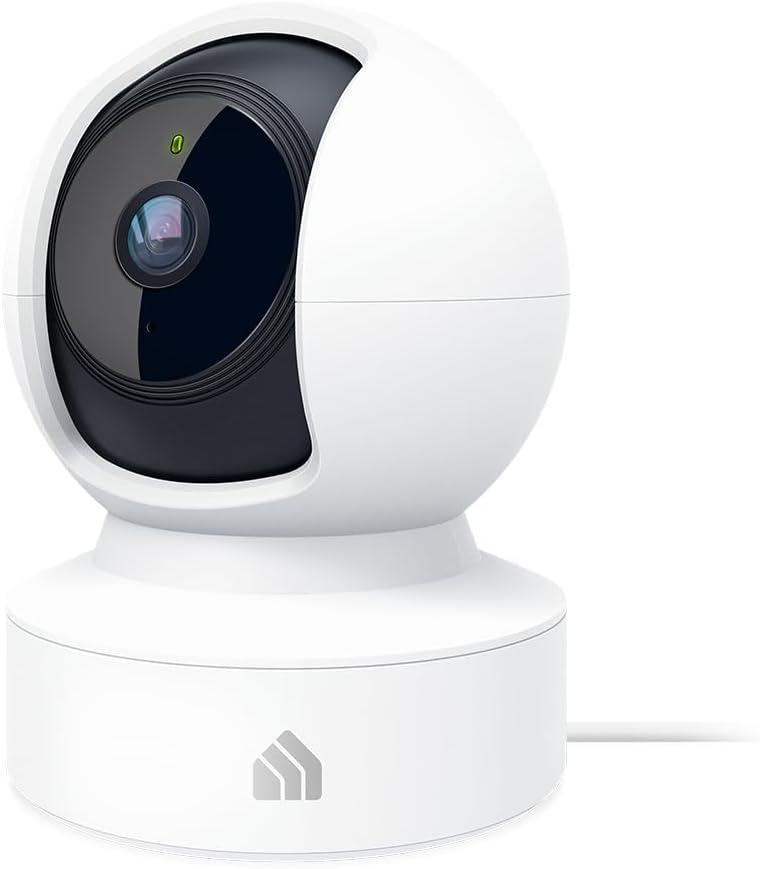
“Wired” means the Kasa camera needs a power cable. It does not usually mean that the camera uses an Ethernet network cable.
The camera normally connects to your home network through Wi-Fi. Its power adapter connects to a wall outlet. This design has two practical effects:
- You do not need to recharge a battery.
- The camera stops working if power is lost, unless it is connected to a suitable backup power source.
A wired power connection is useful for rooms where you want continuous monitoring. It also avoids the short battery life that can affect small wireless cameras. The trade-off is that you must place the camera near an outlet and manage the cable safely.
Power and network roles
| Part | What it does |
|---|---|
| Power adapter and cable | Supplies electricity to the camera |
| Wi-Fi network | Carries live video, alerts, and app commands |
| Kasa app | Shows video and controls camera settings |
| microSD card, if supported | Stores recordings locally |
| Cloud plan, if selected | Stores supported clips online |
The camera may still save some video locally when the internet is unavailable, depending on the model, card, settings, and network condition. Remote viewing and cloud features generally need an active internet connection.
How the Kasa 2K+ Camera Captures and Sends Video
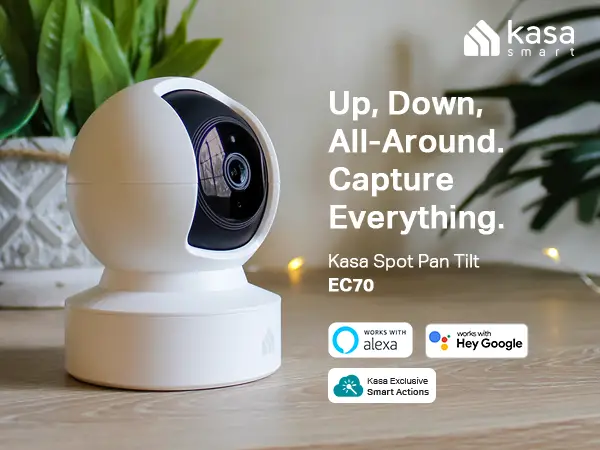
The camera’s image sensor captures video and processes it into a digital stream. The camera then sends that stream over your home Wi-Fi network to the Kasa app or to an approved storage service.
“2K” is a marketing term used for a resolution above Full HD. Many Kasa 2K indoor models use a resolution around 2560 × 1440 pixels, but the exact resolution depends on the model. Check the product label and official specifications for your unit.
Higher resolution can make faces, packages, and room details easier to see. It does not guarantee clear footage in every situation. Results also depend on lighting, distance, lens quality, motion, Wi-Fi strength, and the selected video setting.
Live view
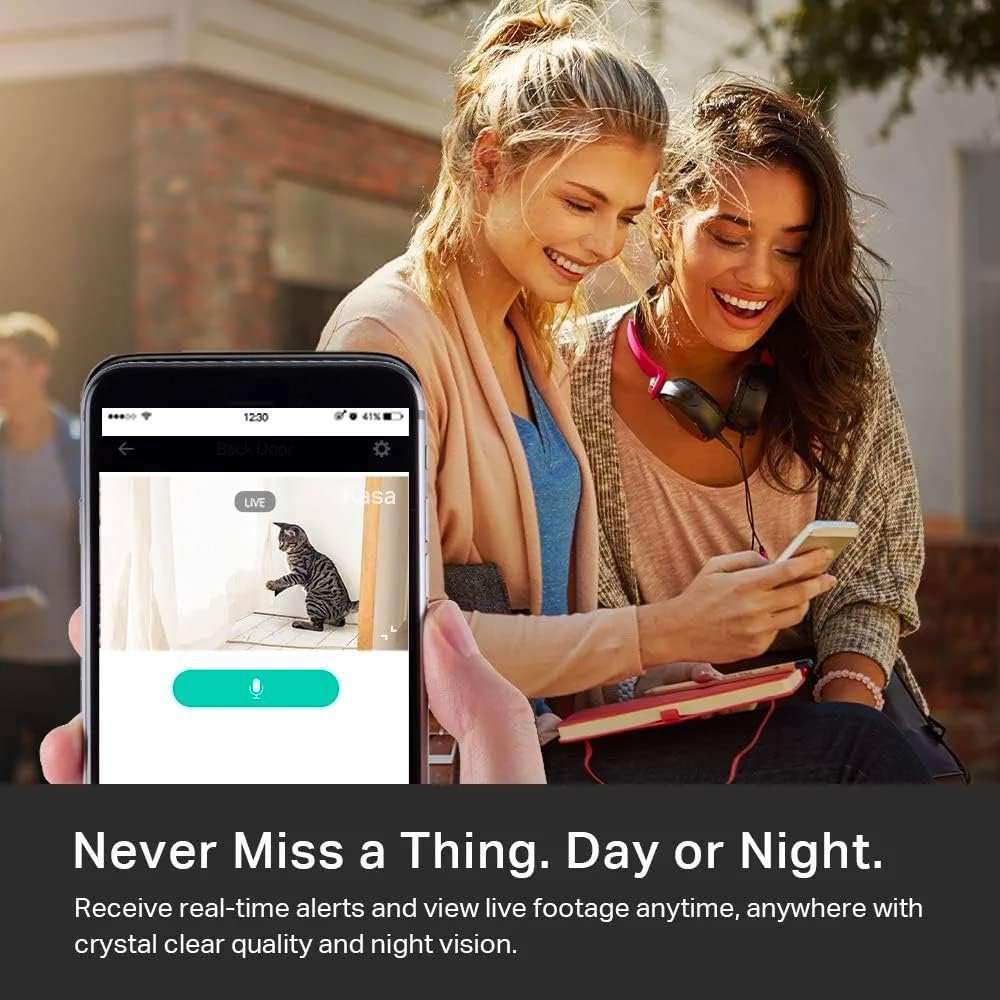
When you open the Kasa app, it requests a live stream from the camera. The app may take a few seconds to connect. Video quality can change when the Wi-Fi signal is weak or when the camera detects network congestion.
Live video may use a large amount of data. This matters if your internet service has a data limit or if you view the camera for long periods over cellular data.
Night vision
The camera uses infrared light to see in low light. Infrared light is normally invisible to people, but the image may appear black and white.
Night vision works best when:
- The lens is clean.
- The camera is not aimed through glass.
- No bright light shines into the lens.
- The room is within the camera’s infrared range.
- Reflective objects are not close to the camera.
A window can reflect infrared light back into the lens. This can create glare, haze, or a bright white patch. For night viewing, place the camera inside the room rather than behind a window.
How Pan and Tilt Movement Works
The camera uses small internal motors to rotate the lens housing. Pan means side-to-side movement. Tilt means up-and-down movement.
Many Kasa pan-and-tilt models provide about 360 degrees of horizontal coverage and roughly 113 degrees of vertical movement, but the available range can differ by model. The camera does not see every angle at once. It moves to one position at a time.
You can usually control the view in the Kasa app by:
- Swiping left, right, up, or down on the live video.
- Selecting a saved viewing position, if supported.
- Using automatic motion tracking, if the model and firmware support it.
- Setting patrol or position functions, if available.
Motion tracking
Motion tracking tells the camera to follow detected movement. It can be helpful when a person or pet moves across a room. However, it is not the same as professional surveillance tracking.
Tracking may fail when:
- The subject moves too quickly.
- The room is too dark.
- The person blends into the background.
- Furniture blocks part of the subject.
- Multiple people move in different directions.
- The camera reaches its movement limit.
Pan and tilt also create a coverage trade-off. If the camera is facing one direction while an event happens behind it, it may not capture the event clearly unless the camera records a wider view or returns quickly to that area.

How to Set Up the Kasa 2K+ Indoor Camera
Before setup, prepare the camera, its power adapter, a supported phone, and a reliable home Wi-Fi connection. Many Kasa indoor cameras use a 2.4 GHz Wi-Fi network during setup. Some newer models may support additional network bands, so use the instructions for the exact model.
Setup steps
- Install the Kasa app from the Apple App Store or Google Play Store.
- Create or sign in to a Kasa account if the app requires one.
- Plug the camera into a wall outlet.
- Wait for the status light or voice prompt that indicates setup mode.
- Open the app and add a new device.
- Select the correct camera model.
- Follow the app instructions to connect the camera to Wi-Fi.
- Choose a name and room location.
- Install firmware updates when offered.
- Set privacy, notification, motion, and recording options.
- Test live view, pan, tilt, audio, and night vision.
Keep the phone close to the router and camera during setup. If the process fails, move the camera closer to the router first. Do not permanently install the camera until live view works from its final location.
Signs that setup worked
Setup is complete when:
- The camera appears online in the Kasa app.
- Live video loads without repeated disconnections.
- Pan and tilt commands move the lens.
- The camera sends a test alert, if alerts are enabled.
- Two-way audio works in both directions.
- The camera reconnects after a brief power cycle.
If setup fails
Try these checks in order:
- Confirm that the camera has power.
- Check whether the status light shows setup mode.
- Restart the Kasa app.
- Confirm the phone is connected to the intended home Wi-Fi.
- Move the camera closer to the router.
- Disable a VPN during setup if it interferes with device discovery.
- Update the Kasa app.
- Reset the camera and repeat setup.
A factory reset removes the camera’s saved network settings. Use the reset button and timing listed in the official manual for your model. Do not reset the camera unless you are ready to add it again.

How Motion Alerts and Person Detection Work
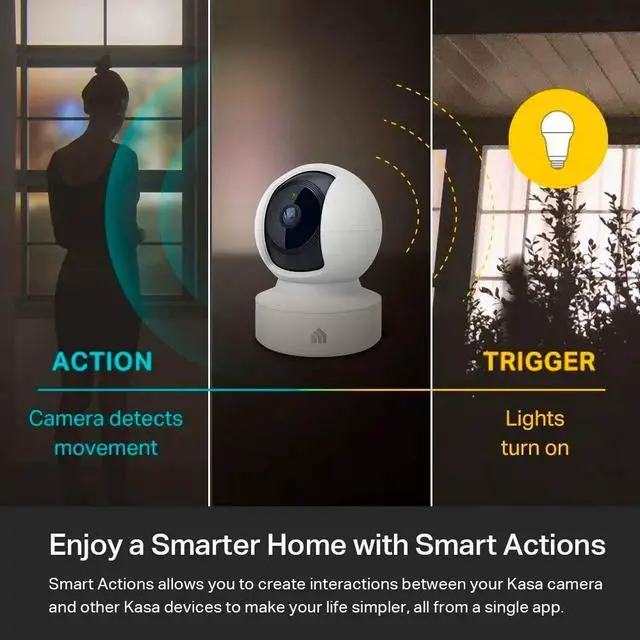
Motion alerts are created when the camera detects a change in the image. A person, pet, moving curtain, changing light, or passing headlight can trigger an alert.
Some Kasa models also offer person detection or other smart detection functions. These features may require a compatible model, current firmware, app support, or a paid Kasa Care plan. Do not assume that every camera labeled “2K+” includes the same detection tools.
Reducing unwanted alerts
You can often improve alerts by:
- Lowering motion sensitivity.
- Creating activity zones.
- Excluding windows or busy streets.
- Setting a schedule.
- Choosing person detection instead of general motion, if supported.
- Moving the camera away from direct sunlight.
- Avoiding views of fans, curtains, or plants that move.
No software filter is perfect. A person detection feature can miss a partially hidden person or create a false alert from a person-shaped object. Use alerts as a prompt to check the video, not as proof that an event occurred.
Notification delay
An alert can arrive after the movement begins. Delay may come from image analysis, Wi-Fi traffic, internet conditions, phone settings, or cloud processing.
For that reason, the camera is better suited to awareness and review than to instant emergency response. If a situation may involve immediate danger, contact local emergency services rather than relying on a camera notification.

Local Storage, Cloud Storage, and Recordings
A compatible microSD card can provide local recording on models that include a card slot. The supported card size and file system vary by camera. Use the official Kasa specification page or manual for the exact limit.
Cloud recording may be available through Kasa Care. Plans, free trial terms, storage periods, and features can change. Check the current US Kasa service terms before purchasing a plan.
Local and cloud storage compared
| Storage type | Main benefit | Main limitation |
|---|---|---|
| microSD card | Can reduce dependence on a monthly cloud plan | The card can fail, fill up, or be removed |
| Cloud storage | Easier remote access and off-site copies | May require a subscription and internet access |
| Live view only | No storage cost | You cannot review footage that was not recorded |
A microSD card is not a complete backup. If someone takes the camera or card, local recordings may be lost. Cloud storage can preserve clips away from the camera, but it depends on account access and an internet connection.
Use a high-quality card intended for continuous video recording. Format it in the camera app when possible. Replace it if the camera reports errors, recordings disappear, or playback becomes unreliable.
Audio, Privacy, and Account Security
Kasa indoor cameras may include a microphone and speaker for two-way audio. The app sends your voice to the camera, while the camera sends captured sound back to the app.
Before enabling audio, consider the privacy of everyone in the room. In the United States, recording laws differ by state, especially when people may have a reasonable expectation of privacy. Tell household members, guests, caregivers, or workers about indoor recording when appropriate, and check applicable state law for your situation.
Use these basic protections:
- Create a strong, unique Kasa password.
- Turn on multi-factor authentication if the account offers it.
- Keep the Kasa app and camera firmware updated.
- Share camera access only with trusted people.
- Disable the camera or use privacy controls when recording is not needed.
- Avoid placing the camera in bedrooms, bathrooms, or other private spaces.
- Review connected users and remove access that is no longer needed.
A camera pointed through a window or toward a neighbor’s private area can create privacy concerns. Aim it only at areas you have a lawful reason to monitor.

Best Placement for a Kasa Indoor Pan/Tilt Camera
Place the camera high enough to reduce easy tampering, but keep it within reach of its power cable. A shelf, bookcase, or wall mount can work if the surface is stable and the view is clear.
For a useful view:
- Aim toward a main room or entry path.
- Keep the lens away from direct sunlight.
- Avoid placing the camera behind objects.
- Leave room for the lens to pan and tilt.
- Keep the power cable away from children and pets.
- Do not place it near water or high heat.
- Test night vision before fixing the final position.
A wide room view is not always the best view. A camera placed too far away may show movement but not enough detail to identify what happened. A closer, well-lit view often provides more useful footage.
Do not use an indoor camera outdoors unless the manufacturer specifically rates that model for outdoor exposure. Rain, condensation, heat, and freezing temperatures can damage indoor electronics.

Troubleshooting Common Kasa Camera Problems
The fastest fix depends on the symptom. Start with power, network strength, and app status before changing advanced settings.
| Symptom | Likely causes | Useful checks |
|---|---|---|
| Camera is offline | Power loss, weak Wi-Fi, router issue | Check the outlet, reboot the router, move the camera closer |
| Video keeps buffering | Weak signal, network congestion, high stream quality | Test near the router and reduce stream quality |
| Pan or tilt does not respond | App delay, motor obstruction, firmware issue | Close and reopen the app; check for objects blocking movement |
| Night image is washed out | Reflection, nearby wall, bright light | Move the camera and clean the lens |
| Too many motion alerts | High sensitivity, moving objects, broad activity zone | Lower sensitivity and narrow the detection area |
| No motion alerts | Alerts disabled, schedule active, weak detection view | Check app permissions, schedules, zones, and firmware |
| Recordings are missing | Full or damaged card, storage setting, cloud issue | Check storage status and format or replace the card |
| Two-way audio fails | Phone permissions, muted audio, network delay | Check microphone permissions and both volume controls |
If the camera goes offline after every restart, test another outlet and inspect the cable for damage. Replace damaged power equipment with a manufacturer-approved option rather than using an unknown adapter.
If the camera becomes unusually hot, smells burnt, makes abnormal noises, or shows visible damage, unplug it and stop using it. Contact the seller or manufacturer for support.

What the Kasa 2K+ Camera Does Not Do
The camera can improve awareness, but it has clear limits:
- It does not provide 24/7 professional monitoring.
- It cannot guarantee that every event will be recorded.
- It may miss movement outside its current view.
- It may not work during a power or network outage.
- It does not replace a smoke alarm, carbon monoxide alarm, or alarm system.
- It is not necessarily weatherproof.
- It cannot identify a person with certainty from every video.
- A cloud subscription may be needed for some advanced storage or detection features.
- Pan-and-tilt movement does not create a full panoramic recording at all times.
The most important buying check is the exact model number. “Kasa 2K+ indoor pan/tilt wired security camera” may describe a product family or retailer listing rather than one universal specification sheet.
Is the Kasa 2K+ Indoor Camera Right for You?
This camera is a reasonable fit if you want an indoor camera with:
- Continuous wall power.
- Remote live viewing through a phone.
- A moving lens for broader room coverage.
- Higher-than-1080p video on a supported 2K model.
- Optional local or cloud recording, depending on the model.
- Motion alerts and possible smart detection features.
Consider another type of camera if you need:
- Outdoor weather resistance.
- Battery operation.
- Cellular backup.
- Professional emergency monitoring.
- A wired Ethernet connection.
- Recording that continues through both power and internet failures.
- A camera designed for a specialized security system.
The deciding trade-off is simple: pan-and-tilt gives more flexible coverage than a fixed indoor camera, but the camera still sees only one direction at a time and depends on power, Wi-Fi, and correctly configured software.
Frequently Asked Questions
Does the Kasa 2K+ camera need Wi-Fi?
Yes, the camera normally uses Wi-Fi for app access, live video, alerts, and cloud services. It also needs electrical power through its cable. Some local recording functions may continue during a temporary internet outage, but this depends on the model and settings.
Can the camera record continuously?
Some supported Kasa models can record continuously to a compatible microSD card. Other recording features may depend on cloud service options. Check the exact model manual for continuous recording support, card limits, and storage settings.
Does the camera work without a subscription?
Basic functions such as setup and live viewing may work without a paid cloud plan. Local recording may also be available on models with a microSD slot. Advanced cloud storage or detection features may require Kasa Care or another supported plan.
Can the Kasa camera see in complete darkness?
It can use infrared night vision in very low light. The image usually changes to black and white. Night vision has a limited range and can be affected by reflections, dust, nearby walls, and bright lights.
Can I use the camera outdoors?
Do not use an indoor Kasa model outdoors unless its official specifications state that it is suitable for outdoor exposure. Indoor cameras are not automatically protected against rain, humidity, heat, or cold.
Why does my camera keep going offline?
Common causes include weak Wi-Fi, router problems, power interruptions, outdated firmware, or an overloaded network. Check the outlet first, then test the camera near the router. If it works nearby but not in its installed location, improve Wi-Fi coverage or move the camera.
Can more than one person view the camera?
Kasa may support camera sharing or multiple account access, depending on the app and model. Use the official sharing controls rather than giving another person your password. Review and remove shared access when it is no longer needed.
Final Takeaway
The Kasa 2K+ Indoor Pan/Tilt Wired Security Camera works by combining a 2K-capable image sensor, motorized pan and tilt, Wi-Fi, the Kasa app, and continuous wall power. It can provide live viewing, motion alerts, night vision, two-way audio, and recording options on supported models.
For the best results, confirm the exact model, place it near a strong Wi-Fi signal, keep the lens clear, use secure account settings, and test recording before relying on it. The next practical step is to find the model number and compare its current US manual with the features you need, especially storage, Wi-Fi band, detection, and outdoor-use limits.