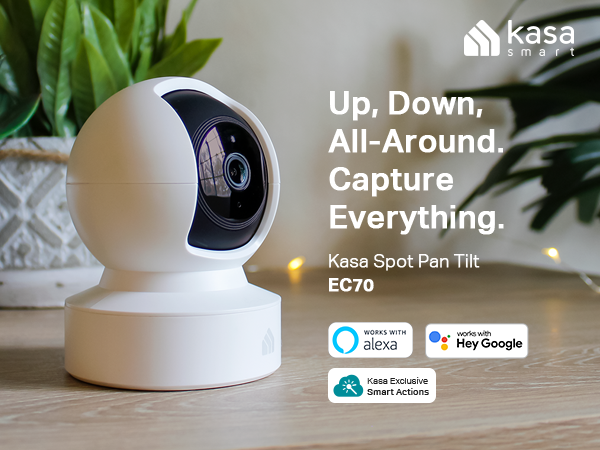
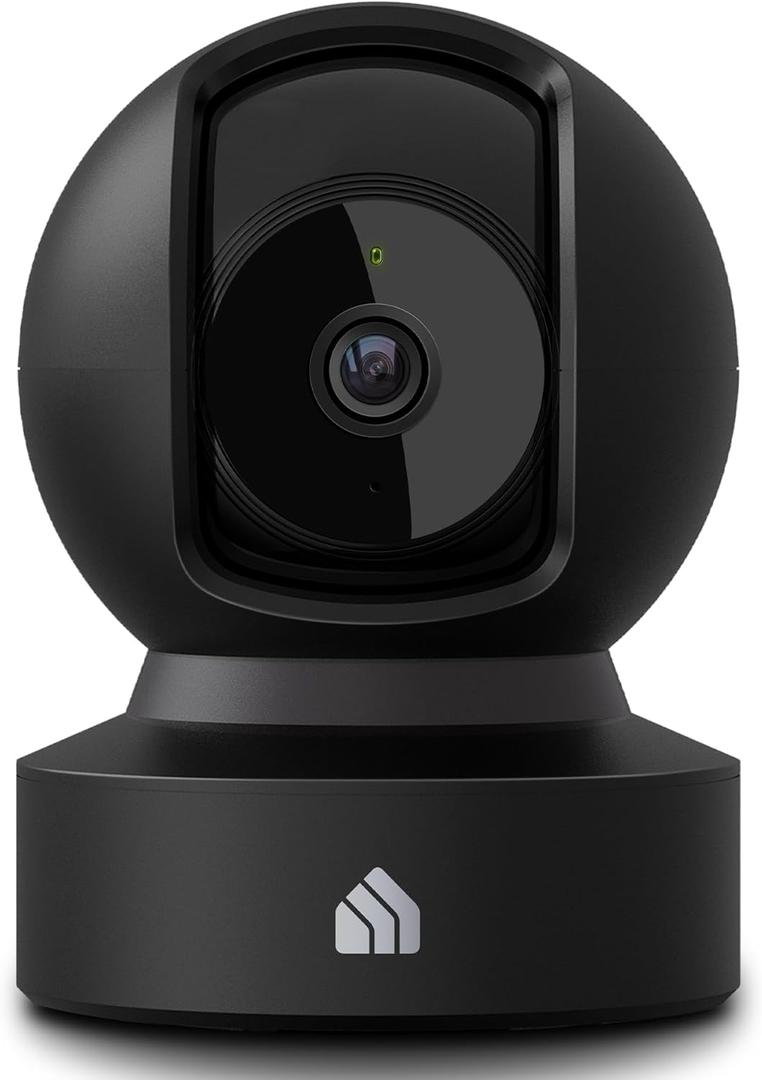
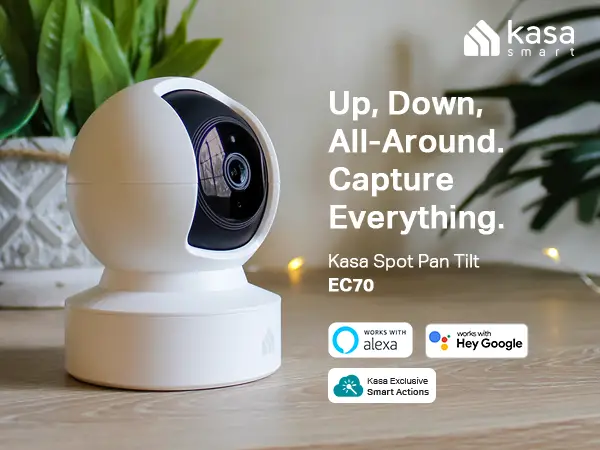
The Kasa 1080p Indoor Pan/Tilt Wired Security Camera, commonly sold in the United States as the Kasa Spot Pan Tilt KC110, is a plug-in Wi-Fi camera for indoor home monitoring. It records in 1080p Full HD, turns from side to side, tilts up and down, supports night vision, and offers two-way audio through the Kasa Smart app.
It fits people who want a simple camera for a living room, nursery, hallway, home office, or pet area. It is less suitable for outdoor use, battery-free installations, or buyers who need advanced security features such as 24/7 professional monitoring, cellular backup, or local network recording.
The camera uses a wired power connection and normally connects to a 2.4 GHz Wi-Fi network. Before buying, check the exact model number, app support, cloud plan terms, and microSD compatibility because product availability and software features may change.
What Is the Kasa 1080p Indoor Pan/Tilt Camera?
The Kasa KC110 is an indoor smart camera made by TP-Link under the Kasa Smart brand. Its main purpose is remote video monitoring through a phone or tablet.
The camera combines four core functions:
- 1080p video: Shows more detail than 720p video under suitable light.
- Pan and tilt movement: Lets you view a wider indoor area from one fixed location.
- Night vision: Uses infrared light to show movement in low light or darkness.
- Two-way audio: Lets you hear sound and speak through the camera.
The camera does not replace a full alarm system. It can alert you to motion or sound, but it does not provide a monitored emergency response. It also does not offer the same weather protection, theft resistance, or long-range coverage as many outdoor security cameras.
Key specifications
| Feature | Kasa KC110 detail |
|---|---|
| Camera type | Indoor pan-and-tilt Wi-Fi camera |
| Video resolution | 1920 × 1080 pixels |
| Power | Wired power adapter |
| Wireless connection | 2.4 GHz Wi-Fi is typically required |
| Pan range | Up to 360 degrees, according to TP-Link specifications |
| Tilt range | About 114 degrees, according to TP-Link specifications |
| Night vision | Infrared night vision, with range depending on conditions |
| Audio | Built-in microphone and speaker |
| Storage | Kasa cloud features and compatible microSD storage, depending on firmware and plan |
| Smart home support | Amazon Alexa and Google Assistant support may depend on current app and service compatibility |
| Intended location | Indoor use only |
The exact features can vary by firmware, app version, sales region, and hardware revision. Use the model number printed on the camera or box when checking current documentation.

Kasa KC110 Video Quality and Viewing Area
The Kasa 1080p camera can provide a clear view of people and objects in a typical indoor room, but 1080p does not guarantee clear detail in every situation. Low light, backlighting, distance, motion, and digital zoom can all reduce image quality.
The camera’s wide lens and pan-and-tilt base help cover a larger room than a fixed camera. Pan means the camera turns left and right. Tilt means it moves up and down. These movements let you adjust the view from the Kasa Smart app.
What 1080p means in practice
A 1080p image has a resolution of 1,920 pixels wide by 1,080 pixels high. This gives the camera more image detail than a 720p model.
That detail is most useful when:
- The subject is close to the camera.
- The room has steady light.
- The lens is clean.
- The camera has a clear view.
- The Wi-Fi connection is stable.
Digital zoom enlarges part of the image. It does not add new detail. If you zoom in on a distant face or package, the image may look soft or blocky.
Pan and tilt limits
Pan and tilt help you check different parts of a room, but they do not create a complete view of every angle at the same time. A wall, cabinet, furniture, or other object can still block the lens.
The camera also needs a stable surface or suitable mounting position. Place it where the lens has a clear line of sight and where the power cable cannot be easily pulled.
For a small room, one camera may cover the main area. For a long hallway, open floor plan, or room with several blocked sections, two fixed viewpoints may provide better coverage than one moving camera.

How to Set Up the Kasa Indoor Pan/Tilt Camera
Set up the camera with the Kasa Smart app and a compatible home Wi-Fi network. Have the camera, power adapter, phone, Wi-Fi password, and a Kasa account ready before you begin.
Before setup
Check these conditions first:
- Confirm that the camera is the US model you intend to use.
- Install the current Kasa Smart app from the official Apple App Store or Google Play Store.
- Connect your phone to the home Wi-Fi network.
- Keep the camera close to the router during setup.
- Make sure the router broadcasts a compatible 2.4 GHz network.
- Choose a location near a safe indoor power outlet.
Many smart cameras have trouble during setup when the phone uses a 5 GHz-only network, a guest network with device isolation, or a Wi-Fi system that hides the 2.4 GHz band. If your router uses one network name for both bands, the app may still work, but the result depends on the router and camera firmware.
Setup steps
- Plug the camera into power.
- Wait for the status light or startup process described in the current Kasa instructions.
- Open the Kasa Smart app and sign in or create an account.
- Select the option to add a device.
- Choose the camera category and the matching Kasa model.
- Follow the app prompts to connect the camera to Wi-Fi.
- Give the camera a clear name, such as “Living Room.”
- Set the time zone and other requested settings.
- Install any available firmware update.
- Test live view, pan, tilt, audio, and alerts before mounting the camera.
A successful setup should show a live image in the app. Move the camera from the app and confirm that the lens responds. Test the microphone and speaker from a nearby location before relying on the camera.
If setup fails, move the camera closer to the router, check the Wi-Fi password, disable a VPN temporarily, and confirm that the phone has permission to use the local network. Reset the camera only after trying these simpler checks because a reset removes the current network configuration.
Storage, Alerts, and Kasa Care
The Kasa camera may support both cloud-based recording features and local microSD storage. The available options depend on the camera firmware, Kasa app version, card capacity, and current TP-Link service terms.
Cloud recording
Kasa Care is TP-Link’s subscription service for supported Kasa cameras. Plans and features can change, so check the current US Kasa Care page before purchasing or relying on cloud history.
Cloud recording can help when:
- The camera is damaged or stolen.
- You need to review video away from home.
- You want recordings stored outside the camera.
- You need event history across more than one device.
A cloud plan may add an ongoing cost. It may also have limits for video history, camera count, or advanced detection features. Do not assume that every KC110 feature remains available without a subscription.
microSD storage
A compatible microSD card can provide local recording on supported firmware. Local storage avoids some cloud costs, but it has limits:
- The card can fail or become full.
- A person who takes the camera may also take the card.
- Continuous recording creates more wear than occasional event recording.
- Playback and card management depend on the app and firmware.
- The camera may overwrite older files when storage fills.
Use a reliable card from a known seller. Format it through the supported camera settings when the app provides that option. If recordings matter, export important clips to another secure location.
Motion and sound alerts
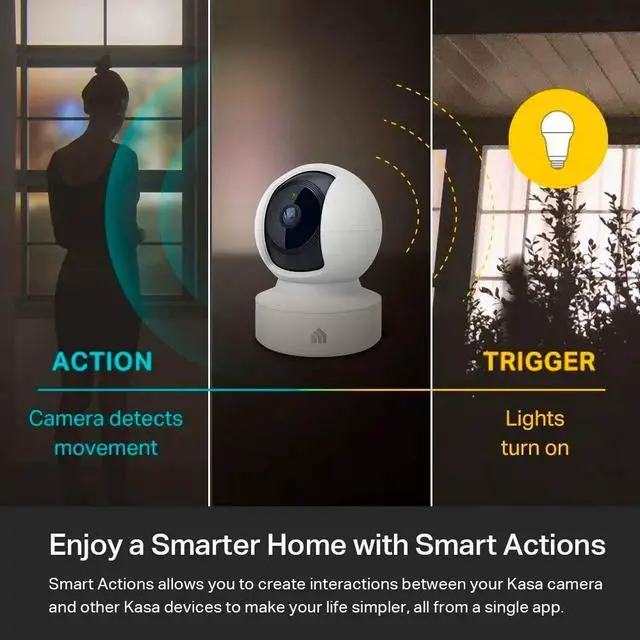
Motion alerts can notify you when the camera detects movement. Sound alerts can respond to noises such as a loud impact, crying, or another sharp change in volume, depending on the available settings.
Alerts are not the same as confirmed threats. A pet, sunlight, moving curtains, shadows, or a television can trigger an alert. Adjust sensitivity and activity zones if the app supports them. Use a short test period to learn how the camera behaves in your room.

Privacy and Security Settings for a US Home
A connected indoor camera can capture private parts of a home. Treat it like a microphone and networked computer, not just a simple lens.
Use these steps to reduce risk:
- Create a strong, unique password for your Kasa account.
- Turn on multi-factor authentication if the current account system offers it.
- Keep the Kasa app and camera firmware updated.
- Use WPA2 or WPA3 security on the home router when supported.
- Avoid placing the camera in bathrooms, bedrooms, or other highly private areas.
- Disable audio if you do not need it.
- Review which household members can access the camera.
- Remove access for people who no longer need it.
- Use a guest or separate IoT network if your router supports suitable device access.
- Check the camera’s status when you move, sell, or reset it.
The camera may send video, audio, account data, or device information through network services. Review TP-Link’s current privacy policy and Kasa terms for the United States. A local microSD card does not automatically make every camera function fully local because the app, account, alerts, and remote access may still use online services.
For sensitive spaces, a physical lens cover or a power switch can offer a clearer privacy boundary than software alone. Unplugging the camera is the simplest way to stop its camera and microphone from operating.

Common Problems and Troubleshooting
Most Kasa camera problems come from power, Wi-Fi, app permissions, storage, or account settings. Start with the safest and simplest checks.
The camera will not connect to Wi-Fi
Possible causes include:
- The camera is too far from the router.
- The Wi-Fi password is wrong.
- The router uses a 5 GHz-only network.
- The network blocks new IoT devices.
- The camera has old network settings.
- The app lacks local network or Bluetooth permissions.
Try moving the camera near the router and repeating setup. Confirm the phone is connected to the intended home network. If the camera was previously used with another router, follow the official reset procedure and add it again.
The video keeps buffering
Buffering can result from weak Wi-Fi at the camera, weak cellular or Wi-Fi service at the phone, router congestion, or a temporary cloud-service issue.
Test live view while your phone is on the same home network. If the image is stable at home but not away from home, the problem may involve the phone’s connection or remote service. If the image is unstable in both places, improve the camera’s Wi-Fi signal or reduce network congestion.
Night vision looks poor
Check for fingerprints, dust, or a protective film on the lens. Reflective surfaces close to the camera can bounce infrared light back into the image. Glass windows can also create glare.
Move the camera away from the glass or reflective surface. Add safe, steady room lighting if you need better color detail. Infrared night vision can show shapes and movement, but it may not provide enough detail for reliable identification at a long distance.
Motion alerts are too frequent
Lower the motion sensitivity if the app offers that setting. Reposition the camera away from windows, ceiling fans, busy hallways, and moving curtains. Create an activity zone that excludes areas with harmless movement.
Do not set sensitivity so low that a person can cross the room without an alert. Test the setting at different times of day.
The microSD card is not detected
Confirm that the card meets the current Kasa requirements. Remove and reinsert it only when safe to do so, then check whether the app offers a format option. A card that works in a computer may still be unsuitable, damaged, counterfeit, or incompatible with the camera.
Replace the card if recordings stop, files become corrupt, or the camera repeatedly reports storage errors.

Who Should Buy the Kasa 1080p Indoor Pan/Tilt Camera?
The Kasa camera is a reasonable fit for US households that want basic indoor viewing through a phone and do not need a battery or outdoor housing.
It may suit:
- Apartment renters who want a portable indoor camera.
- Pet owners checking a room during the day.
- Parents who want basic room monitoring.
- Homeowners who need a view of a living room or entry area.
- Users who already have Kasa Smart devices.
- Buyers who prefer a plug-in camera over charging batteries.
Consider another type of camera if you need:
- Outdoor or weather-resistant operation.
- A battery-powered installation.
- 24/7 professional monitoring.
- Cellular backup during an internet outage.
- Strong privacy controls with no cloud account.
- Optical zoom for distant subjects.
- A built-in privacy shutter or automatic lens cover.
- Local network recording without account dependence.
The key trade-off is simple: the Kasa model offers useful pan-and-tilt coverage at a basic smart-camera level, but it depends on household power, Wi-Fi, and the Kasa ecosystem.
Kasa KC110 Buying Checklist
Before buying a Kasa 1080p indoor pan-tilt camera in the United States, check the following:
- Model number: Confirm that the listing is for the KC110 or the exact Kasa model you need.
- Indoor placement: Do not use an indoor camera outside or in damp areas.
- Power location: Make sure a safe outlet is close enough for the included cable.
- Wi-Fi band: Confirm that your router supports the required 2.4 GHz connection.
- Storage plan: Decide whether you need cloud recording, a microSD card, or only live viewing.
- Subscription cost: Review current Kasa Care terms before assuming that event history is free.
- Smart-home needs: Check current Alexa or Google Assistant compatibility if voice control matters.
- Privacy: Decide whether audio recording and remote access are acceptable in the intended room.
- Availability: Check the official TP-Link US support page because older Kasa models may be replaced or sold through remaining inventory.
- Return policy: Buy from a seller with a clear return process in case the camera does not work with your router.
A listing that says “Kasa 1080p camera” may refer to a different fixed, pan-and-tilt, indoor, or outdoor model. The model number matters more than the general product name.
Frequently Asked Questions
Is the Kasa 1080p Pan/Tilt camera wireless?
It is wireless for network communication but not for power. The camera connects to Wi-Fi, yet it must remain plugged into an electrical outlet. It does not operate like a battery-powered camera.
Does the Kasa KC110 work without Wi-Fi?
The camera requires Wi-Fi for app-based remote viewing and smart features. Without Wi-Fi, it cannot provide normal online access or alerts. Local recording behavior, if available, depends on the camera’s current firmware and storage setup.
Can the Kasa indoor camera record continuously?
Continuous recording may be available when a compatible microSD card and supported settings are used. Check the current Kasa app and product documentation because recording modes and storage limits can change.
Does the Kasa camera detect people?
Basic motion detection is not the same as dependable person identification. Some Kasa features or newer models may offer person detection, but you should confirm that feature for the exact KC110 hardware, firmware, and current service plan before buying.
Can I use the Kasa camera outdoors?
No. The indoor Kasa pan-and-tilt camera is not designed for rain, outdoor humidity, dust, or extreme temperatures. Use a camera with an appropriate outdoor weather-resistance rating for exterior locations.
How far can the camera see at night?
TP-Link lists an infrared night-vision range for supported Kasa camera models, but actual results vary with room size, light reflection, subject distance, and obstructions. Treat the published range as a test condition, not a guarantee of face-level detail.
Final Recommendation
The Kasa 1080p Indoor Pan/Tilt Wired Security Camera is best for basic indoor monitoring where a power outlet and reliable 2.4 GHz Wi-Fi are available. Its 1080p video, remote pan and tilt, night vision, two-way audio, and optional storage features cover the needs of many apartments, living rooms, pet areas, and home offices.
Its limits are just as important: it is not weatherproof, not battery-powered, and not a professional alarm system. Confirm the KC110 model, review current Kasa support and subscription terms, secure your account, and test the camera in its planned location before depending on it for important monitoring.