Introduction
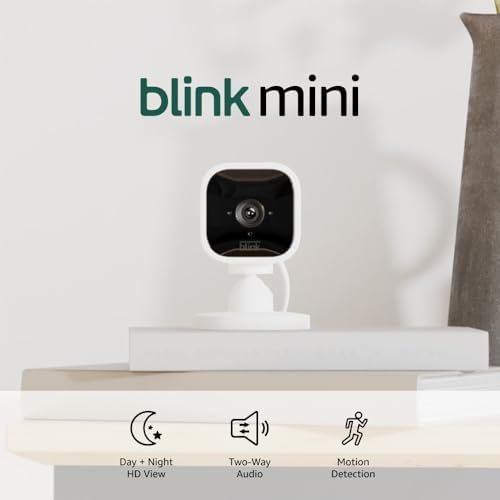
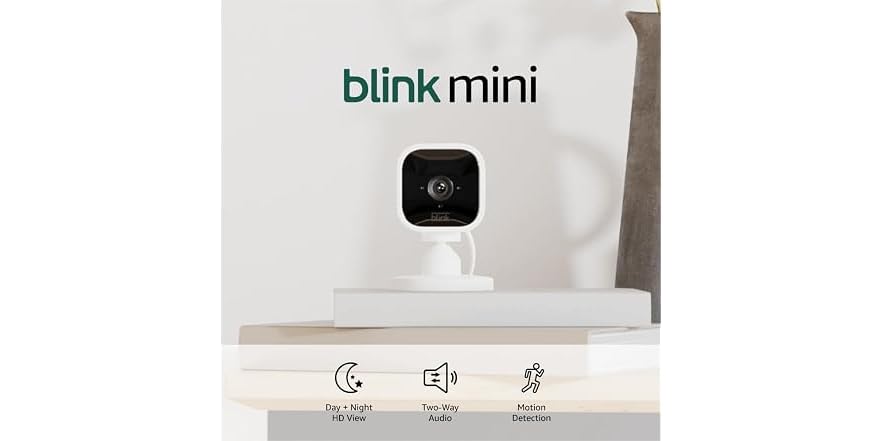
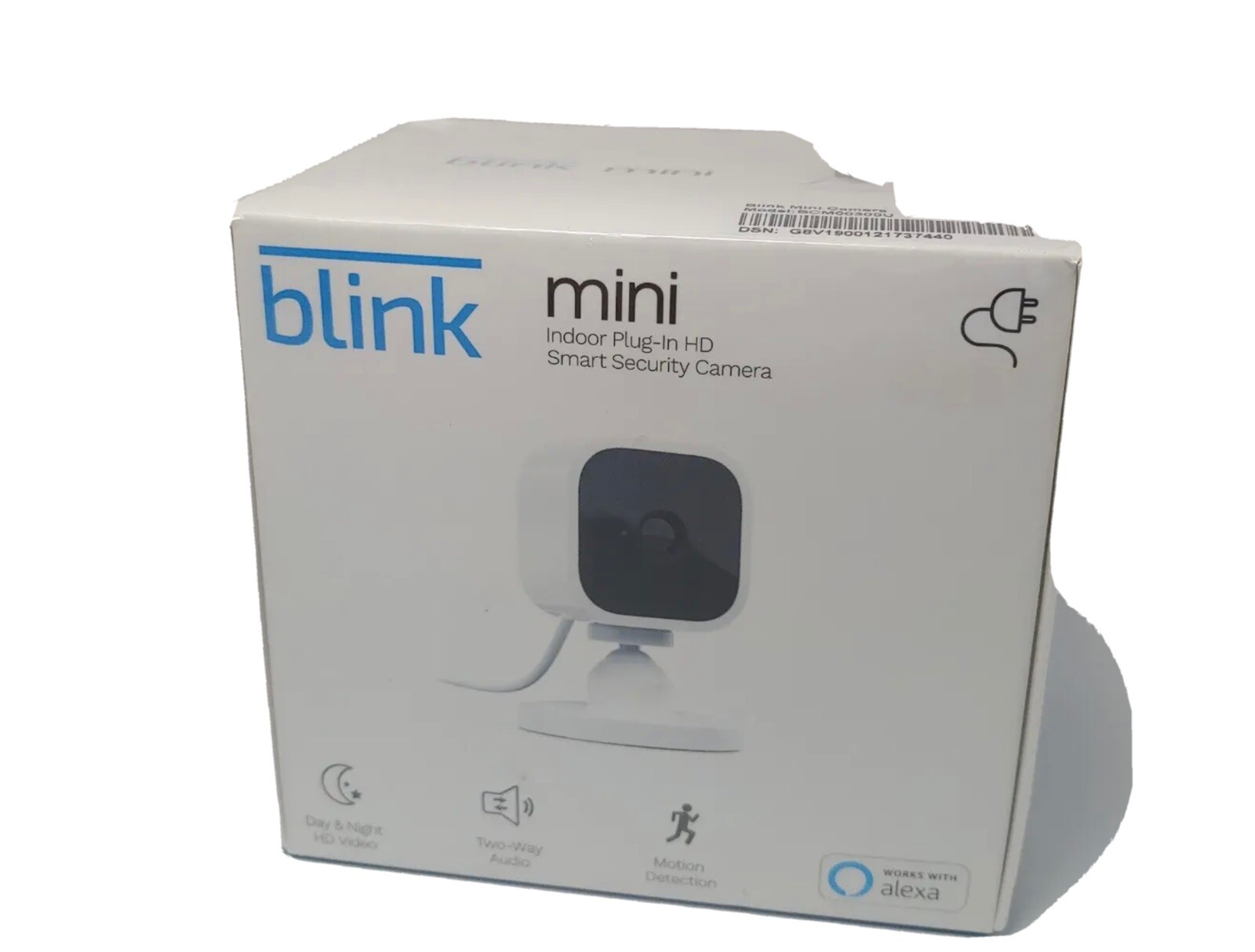
The Blink Mini Compact Indoor Plug-In Smart Security Camera with 1080p HD video is a small, wired camera made for indoor monitoring in US homes. It connects to a 2.4 GHz Wi-Fi network and lets you view live video, receive motion alerts, and speak through the camera using the Blink app.
The original Blink Mini is best for rooms such as entryways, nurseries, home offices, and living rooms. It does not use batteries, so it needs a nearby outlet. It also does not provide cellular backup, professional monitoring, or outdoor protection.
This guide explains its features, setup, storage choices, privacy limits, common problems, and who should consider it.

What Is the Blink Mini 1080p Indoor Camera?
The Blink Mini is a compact indoor security camera from Blink, an Amazon-owned smart home brand. It uses a plug-in power adapter rather than a rechargeable or replaceable battery.
Its main functions include:
- 1080p HD live view
- Motion detection and phone alerts
- Infrared night vision
- Two-way audio
- Custom activity zones
- Live video through the Blink mobile app
- Alexa compatibility
- Cloud video storage with a qualifying Blink subscription
- Local storage when paired with compatible Blink accessories
The camera is designed for simple indoor viewing. It can help you check a room, watch a pet, monitor a child’s play area, or see activity near an interior door. It is not a complete alarm system because it does not include a loud siren, entry sensors, or emergency dispatch.
Key specifications
| Feature | Blink Mini |
|---|---|
| Video quality | Up to 1080p HD |
| Power | Plug-in wall power |
| Network | 2.4 GHz Wi-Fi |
| Audio | Two-way audio |
| Night viewing | Infrared night vision |
| Detection | Motion detection |
| Storage | Cloud storage or compatible local storage setup |
| Mobile control | Blink app for supported iOS and Android devices |
| Voice control | Alexa-compatible features |
| Intended use | Indoor use |
Specifications and included services can vary by package, region, software version, or product revision. Confirm the current US listing and Blink support documentation before purchase.
What Does “1080p” Mean on the Blink Mini?
1080p means the camera can produce video with a resolution of up to 1,920 × 1,080 pixels. This is sharper than standard-definition video and can make people, pets, and larger objects easier to identify.
Resolution is only one part of image quality. Lighting, camera angle, Wi-Fi strength, motion, and distance also affect what you see. A 1080p camera may still show a face poorly if the person is far away, backlit, or moving quickly.
The Blink Mini uses infrared night vision in dark areas. Night images are typically shown in black and white. Infrared light can help the camera see in low light, but it cannot provide normal color detail in a dark room.
What 1080p does not guarantee
A 1080p label does not mean:
- Every area of the room will be equally clear
- Digital zoom will create new detail
- Faces will be readable at any distance
- Video will remain sharp during weak Wi-Fi
- The camera can see through walls or glass
- Night video will look like daytime video
for useful coverage, place the camera where the main area is close enough to fill a reasonable part of the image. Avoid pointing it directly at a bright window. Strong backlight can make nearby subjects look dark.

Blink Mini Features That Matter in Daily Use
The Blink Mini’s value comes from its basic monitoring tools rather than advanced security hardware. Each feature has a practical limit.
Motion detection
The camera can detect movement and send alerts through the Blink app. Motion settings can usually be adjusted through the app, including activity zones and sensitivity controls.
Activity zones can help reduce alerts from areas such as:
- Windows facing a busy street
- Ceiling fans
- Television screens
- Open doorways
- High-traffic parts of a room
Motion alerts are not the same as person detection. A moving pet, shadow, curtain, or changing light may trigger an alert. The original Blink Mini should not be treated as a guaranteed human-identification system unless the current model and plan clearly support that function.
Live view
Live View lets you open the camera in the Blink app and see what is happening. This is useful when you want to check a room without waiting for a motion event.
Live video depends on:
- A working internet connection
- The camera being powered
- A functioning Blink account
- Adequate Wi-Fi signal
- App and server availability
A delay can occur between real activity and what appears on the phone. Live View should not be used as a substitute for emergency response.
Two-way audio
The built-in microphone and speaker let you listen and speak through the app. This can help you talk to a family member, calm a pet, or tell someone that you will be there soon.
Audio quality can drop when the camera and phone have weak connections. Feedback may also occur if the phone is close to the camera with its speaker volume turned up.
Alexa support
The Blink Mini can work with compatible Alexa devices and routines. Depending on the supported device, you may be able to ask Alexa to show the camera feed on a compatible screen.
Alexa features can change by device, country, account setup, and software version. Check the current Blink and Amazon compatibility pages before relying on voice control.

How to Set Up the Blink Mini
You need the camera, its power adapter, a supported mobile device, a Blink account, and a working 2.4 GHz Wi-Fi network.
Setup steps
- Install the Blink app. Download the official Blink app from the Apple App Store or Google Play.
- Create or sign in to a Blink account. Use an email address that you can access.
- Plug in the camera. Connect the included power adapter and wait for the status light.
- Add the camera in the app. Select the option to add a Blink device and follow the prompts.
- Scan the device code. The app may ask you to scan the QR code on the camera or packaging.
- Connect to Wi-Fi. Choose the correct 2.4 GHz network and enter its password.
- Name the camera. Use a clear name such as “Living Room” or “Front Hall.”
- Test Live View. Confirm that video and audio work before mounting or placing the camera.
- Set motion options. Adjust sensitivity and activity zones after observing normal movement in the room.
- Choose storage. Review available cloud and local storage options in the app.
The exact screens may change as Blink updates its app. If setup fails, follow the current instructions in Blink Support rather than using an older video guide.
Signs that setup worked
Setup is generally successful when:
- The camera appears in the Blink app
- Live View opens without an error
- Motion creates an alert
- The microphone and speaker work
- Night vision activates in a dark room
- The camera reconnects after a brief router restart
Avoid mounting the camera until these checks pass. Testing it first prevents a difficult removal later.
Cloud Storage, Local Storage, and Subscription Costs
The Blink Mini can work with Blink’s cloud storage service, but recorded video features depend on the plan, trial, device eligibility, and current US terms.
A subscription may provide features such as:
- Saving motion clips to the cloud
- Reviewing recorded clips later
- Sharing or downloading clips
- Extended camera storage features
- Coverage for eligible Blink devices under a broader plan
Without qualifying cloud storage, some users may still have access to Live View and motion notifications, but recorded video options may be limited. Blink’s exact no-subscription features can change, so verify the current plan details before buying.
Local storage
Blink supports local storage through compatible equipment, such as a Sync Module 2 and a compatible USB flash drive. This setup can reduce dependence on cloud clip storage, but it adds hardware and configuration steps.
Local storage is not the same as a full security recorder. Consider:
- The USB drive’s capacity and compatibility
- Whether the Sync Module remains connected
- How clips are transferred or viewed
- The need to protect the storage device
- Whether the camera still needs internet access for alerts and remote viewing
Simple cost comparison
| Option | Main benefit | Main trade-off |
|---|---|---|
| Live View only | No recurring recording plan may be needed | You may not have a saved clip after an event |
| Cloud plan | Easy remote recording and playback | Ongoing subscription cost |
| Sync Module 2 with USB | Local clip storage | Extra hardware and setup |
| Cloud plus local storage | More storage flexibility | Higher total cost and more parts |
The right choice depends on whether you need to watch live, review past events, or keep clips for a longer period.

Best Placement for the Blink Mini
Place the Blink Mini near an outlet and aim it at the area that matters most. A corner shelf or high cabinet often gives a wider view than a low table.
Good placement practices include:
- Keep the lens free of dust and fingerprints
- Point the camera away from direct sunlight
- Avoid placing it behind glass
- Keep it out of reach of children and pets
- Leave room around the speaker and microphone
- Aim slightly downward from a stable surface
- Use the mount only after testing the viewing angle
The camera is intended for indoor use. Do not place the original Blink Mini outside, in a damp location, or where water can reach the power adapter.
Privacy-aware placement
Do not point an indoor camera at areas where people reasonably expect privacy. In a shared home, tell household members and guests about camera use when appropriate. Local recording and audio laws vary, especially when conversations are captured.
The Blink Mini includes a physical privacy shutter on some newer Blink camera models, but you should not assume the original Mini has every feature found on later models. Check the exact hardware version before relying on a privacy control.

Blink Mini Troubleshooting
Start with power and network checks before changing advanced settings. Most connection problems come from a weak signal, a wrong Wi-Fi band, a changed password, or a router issue.
The camera will not connect
Check these items in order:
- Confirm that the power adapter is firmly connected.
- Try a different wall outlet.
- Confirm that your Wi-Fi works on another device.
- Make sure the router provides a 2.4 GHz network.
- Re-enter the Wi-Fi password carefully.
- Move the camera closer to the router during setup.
- Restart the router and camera.
- Update the Blink app if an update is available.
- Repeat setup only after the earlier checks fail.
Do not use an unapproved power adapter simply because its plug fits. Voltage and current must match the product requirements.
Motion alerts are too frequent
Reduce unwanted alerts by:
- Adjusting the camera angle
- Excluding windows or busy areas with activity zones
- Lowering motion sensitivity in small steps
- Moving the camera away from fans or reflective surfaces
- Checking whether pets cross the detection area
Do not lower sensitivity so far that important movement goes unnoticed. Test the setting at different times of day.
Night vision looks poor
Clean the lens with a soft, dry cloth. Remove nearby objects that may reflect infrared light, such as glass, glossy decorations, or close walls.
If the room has a bright light behind the subject, reposition the camera. Night vision cannot correct every lighting problem. A small amount of safe, indirect room light may improve detail.
Live View fails or video drops
Weak Wi-Fi is a common cause. Test the camera near the router. If it works there but not in its intended location, the issue may be signal strength or interference.
Other possible causes include:
- Router congestion
- An internet outage
- App problems
- A Blink service interruption
- Camera firmware updates
- Network security settings that block setup traffic
If several Blink devices fail at once, check the home network and official Blink service information before resetting each camera.
Blink Mini Advantages and Limitations
The Blink Mini is a sensible fit when you want a low-cost indoor camera with simple app control. Its compact size, 1080p video, night vision, motion alerts, and two-way audio cover basic room monitoring.
It may not fit your needs if you require:
- Battery operation
- Outdoor weather resistance
- 24/7 continuous recording
- A built-in siren
- Cellular backup
- Professional monitoring
- Advanced identity recognition
- Guaranteed emergency response
- A completely subscription-free recording system
The most important trade-off is the difference between basic live monitoring and reliable recorded evidence. A camera that shows Live View may still require a plan or extra equipment to save clips for later.
Is the Blink Mini Worth It for a US Home?
The Blink Mini can be a practical choice for renters, apartment residents, pet owners, and families who want a simple indoor view without installing complex wiring. Its plug-in design avoids battery charging, but it also means the camera stops working if power is lost.
It is most suitable when:
- You have a nearby indoor outlet
- Your Wi-Fi signal is reliable
- You want app-based monitoring
- You accept possible cloud or accessory costs
- You need one or more basic indoor cameras
Choose a different type of system if you need outdoor coverage, local recording without added hardware, continuous recording, or professional alarm response. Before purchase, compare the total cost of the camera, subscription, storage accessories, and any replacement power parts.

Frequently Asked Questions
Does the Blink Mini record all the time?
The Blink Mini is mainly designed for motion-triggered clips and Live View. It is not generally positioned as a traditional 24/7 continuous recording camera. Check the current Blink documentation for the exact recording functions available with your device and plan.
Does the Blink Mini need Wi-Fi?
Yes. The camera needs Wi-Fi for setup, remote viewing, alerts, and internet-based services. It normally connects through a 2.4 GHz wireless network.
Can the Blink Mini work without a subscription?
Some basic functions, such as Live View and motion notifications, may remain available without a paid cloud plan. Saved video features can be limited. A compatible Sync Module 2 and USB drive may provide a local storage option. Review current US Blink terms before relying on a subscription-free setup.
Can I use the Blink Mini outdoors?
No. The original Blink Mini is an indoor camera. Outdoor use can expose it and its power connection to moisture, temperature changes, and damage. Use a camera designed and rated for outdoor conditions instead.
Does the Blink Mini work with Alexa?
Yes, the Blink Mini supports compatible Alexa features. The available commands depend on the Alexa device, Blink account, app version, and current software support.
Can I use the Blink Mini as a baby monitor?
It can provide a view and two-way audio, but it is not a medical monitor. It may also have video delay, Wi-Fi interruptions, and motion-alert limits. Do not rely on it to detect breathing, illness, or an emergency.
Conclusion
The Blink Mini Compact Indoor Plug-In Smart Security Camera 1080p is a small, simple camera for indoor viewing in US homes. It offers 1080p video, motion alerts, night vision, two-way audio, and Alexa support through the Blink app.
Its main limits are just as important: it needs wall power and Wi-Fi, it is not weatherproof, and recorded video may require a subscription or compatible local-storage equipment. Test the camera before mounting it, place it away from glare and private areas, and confirm the current Blink storage terms before making a purchase.
For the next step, decide whether you need Live View only, cloud recording, or local storage. That choice will determine the true cost and whether the Blink Mini meets your security needs.
Official information to verify before purchase
- Blink Mini product support
- [Blink subscription plans](https://blinkforhome.com/ blink-subscription-plans)
- Blink support home
- Amazon Alexa and Blink compatibility information