Introduction
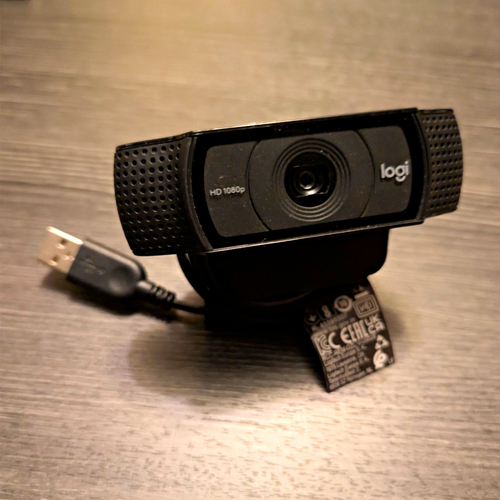
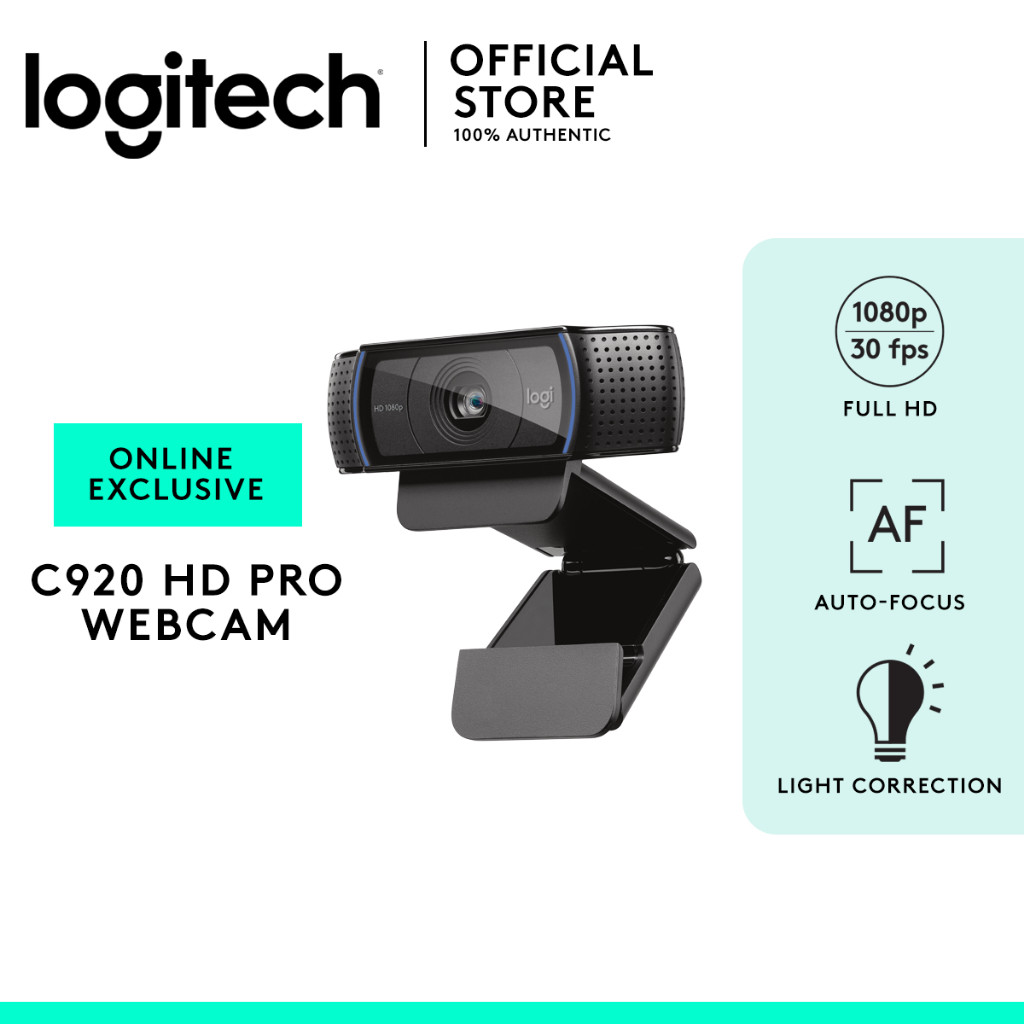
For people in the United States who work from home, attend online classes, join telehealth visits, or make video content, the Logitech C920x HD Pro Webcam offers a simple way to improve video quality over most built-in laptop cameras. It records and streams Full HD 1080p video at 30 frames per second through a standard USB connection.
The Logitech C920x is best for clear video calls, online meetings, and casual streaming. Its autofocus, automatic light correction, and built-in stereo microphones reduce the need for extra gear. However, it does not record 4K video or 60-frame-per-second Full HD, so demanding streamers may need a newer model.

Logitech C920x specifications at a glance
The Logitech C920x is a USB webcam with a 1080p camera sensor, autofocus, automatic exposure control, and dual built-in microphones. It is designed for computers rather than phones, tablets, or standalone recording.
| Feature | Logitech C920x detail |
|---|---|
| Maximum video resolution | Full HD 1920 × 1080 |
| Maximum frame rate | 30 frames per second |
| Focus system | Autofocus |
| Field of view | About 78 degrees diagonal |
| Microphones | Built-in stereo microphones |
| Connection | USB-A |
| Cable length | About 1.5 meters, or 4.9 feet |
| Mounting | Monitor clip and standard tripod mount |
| Privacy shutter | Not the same as the C920s privacy-shutter model |
| Typical use | Video calls, meetings, classes, streaming, and recording |
| Video format | Depends on the application and operating system |
The key point is simple: the C920x provides sharp 1080p video at 30 fps, not 1080p at 60 fps and not 4K. That level is enough for most Zoom, Microsoft Teams, Google Meet, Discord, and Skype calls.
What does 1080p30 mean?
“1080p” describes the image size. The webcam produces a frame that is 1,920 pixels wide and 1,080 pixels high. The “30” means it can show up to 30 frames each second.
A higher frame rate can make fast movement look smoother. For talking, teaching, meetings, and normal webcam use, 30 fps is usually adequate. The quality of the room light, lens, internet connection, and software settings can matter more than the frame rate.
What does the “x” in C920x mean?
The C920x is a product variant in Logitech’s C920 family. Buyers should check the exact package and model listing because C920-family products can differ in included software, privacy accessories, regional packaging, and availability.
Do not assume that the C920x has every feature found on the C920s or newer Logitech webcams. In particular, a physical privacy shutter should be verified before purchase.

Video quality and real-world performance
The Logitech C920x produces its best image when the subject faces a soft light source. Its automatic light correction can adjust exposure and color when room conditions change, but software cannot fully repair a dark, noisy, or backlit room.
The 78-degree field of view suits one person at a desk. It can also include two people sitting close together. It is less suitable for showing a large room, whiteboard, or wide group.
Autofocus
Autofocus helps keep your face clear when you move closer to or farther from the camera. This is useful for demonstrations, teaching, product shows, and document work.
Autofocus can hunt in poor light or when the background has more contrast than the subject. If the image keeps shifting, add light to your face and avoid placing bright windows directly behind you.
Automatic light correction
The webcam can adjust exposure as lighting changes. This helps in a home office where daylight may vary during a call.
It is still better to use a lamp or window in front of you. A bright window behind your head can make your face look dark. A small desk lamp placed near the camera often improves the image more than changing advanced software settings.
Color and sharpness
A clean lens, steady mount, and good light help the C920x produce a more detailed image. Dust, fingerprints, glare, and a loose monitor clip can reduce clarity.
The image may look softer in applications that lower video quality to save bandwidth. Some meeting apps also crop the camera image or apply their own noise reduction and exposure controls.
Is the C920x good for streaming?
The C920x can work well for beginner livestreaming, video lessons, video podcasts, and face-camera footage. Its 1080p30 output is suitable for a talking-head view.
It has limits for gaming and professional production. It lacks 60 fps Full HD and 4K resolution. It also uses built-in microphones that may pick up keyboard noise, room echo, or fan noise. A separate USB microphone is a useful upgrade when voice quality matters.
Audio quality and microphone limits
The C920x includes two built-in microphones that capture stereo sound. They are convenient for calls because the user does not need a separate microphone.
The microphones are not a replacement for a dedicated microphone in a noisy room. They may capture typing, air conditioning, nearby conversations, and echo from hard walls.
For better sound:
- Place the webcam near eye level.
- Keep the computer and webcam away from loud fans.
- Close nearby windows when traffic noise is high.
- Use headphones to reduce speaker echo.
- Select the C920x as the microphone in the calling app.
- Use a dedicated USB microphone for streaming or recorded lessons.
Audio problems often come from the application selecting the wrong input. Always check the microphone setting before changing drivers or reinstalling software.
How to set up the Logitech C920x on a Windows PC
The C920x is generally plug and play on modern Windows computers. Most users can begin with the following process.
Step 1: Mount the webcam
Open the folding clip and place it on the top edge of your monitor or laptop display. Adjust the hinge until the camera points at your face.
The camera should sit close to eye level. A low angle can point toward your chin, while a high angle can make eye contact feel unnatural.
Step 2: Connect the USB cable
Plug the webcam’s USB-A cable into a compatible USB port. If your computer only has USB-C ports, use a reliable USB-C hub or adapter that supports data.
Avoid using a low-quality hub if the webcam disconnects or fails to appear. Try a direct port on the computer first.
Step 3: Select the webcam in Windows
Open the camera settings or the video application you plan to use. Choose Logitech C920x as the camera.
If you want to use its built-in microphones, choose Logitech C920x as the audio input as well. You can select a headset or separate microphone instead.
Step 4: Test the image
Check the preview before joining a call. Look for:
- A clear face
- Natural exposure
- A level camera angle
- Minimal background clutter
- A working microphone indicator
- No bright window directly behind you
Step 5: Set the webcam inside the meeting app
Zoom, Microsoft Teams, Google Meet, Skype, Discord, and other programs may have their own camera menus. Selecting the C920x in Windows does not always force every application to use it.
Open the app’s video settings and select the webcam there. Then make a short test call or recording.
Signs that setup worked
The setup is successful when the webcam appears in the application, the preview shows a live image, and the microphone meter responds to your voice. If another program already controls the webcam, close that program and try again.

Logitech C920x compatibility
The C920x is intended for computers with a compatible USB data port. Compatibility can depend on the operating system, application, available drivers, and the computer’s security settings.
It commonly works with current versions of Windows and macOS, as well as supported ChromeOS systems. Exact operating system requirements can change, so check Logitech’s current support page and the software maker’s requirements before buying for an older computer.
USB-C computers
Many newer laptops sold in the United States use USB-C instead of USB-A. The C920x uses USB-A, so a USB-C adapter or hub may be required.
Choose an adapter that supports data transfer. A charging-only adapter cannot carry the webcam signal.
Browser permissions
Web browsers often ask for permission to access the camera and microphone. If Google Meet or another browser-based service shows a black screen, check the browser’s site permissions.
Also check the operating system privacy settings. Windows and macOS can block camera access even when the webcam is connected correctly.
Multiple cameras
If a laptop has a built-in camera, the meeting app may select it by default. Open the application’s camera list and choose the C920x manually.
This is one of the most common reasons users think a USB webcam is not working.
Troubleshooting common C920x problems
Most C920x problems come from the USB connection, privacy permissions, application settings, or poor lighting. Check the simplest cause first.
| Problem | Likely cause | Useful fix |
|---|---|---|
| Webcam does not appear | USB connection or permission issue | Reconnect it, try another port, and allow camera access |
| Black video screen | Another app is using the camera | Close other camera apps and restart the meeting app |
| Poor image quality | Low light, dirty lens, or low app setting | Add front light, clean the lens, and select HD video |
| Face looks too dark | Bright light behind the user | Move the light in front of the user |
| Camera keeps refocusing | Low light or busy background | Improve lighting and use a simpler background |
| Microphone does not work | Wrong input selected or permission blocked | Select C920x audio and allow microphone access |
| Video freezes | USB, system, or network issue | Try a direct USB port and check the application |
| Image is not 1080p | App, account, or bandwidth limit | Review the app’s video settings and service limits |
If Windows does not detect the webcam
- Unplug the C920x.
- Restart the computer.
- Connect the webcam directly to another USB port.
- Check camera privacy permissions.
- Close video apps that may already be using the camera.
- Test the webcam in the built-in camera application.
- Check Logitech support software or the computer’s device settings for available updates.
Do not install random driver files from unofficial websites. Use the computer maker, operating system, application, or Logitech support site.
If the video looks blurry
First, wipe the lens with a clean, soft microfiber cloth. Then check whether autofocus has locked onto the wrong object. Improve the light on your face and move away from a cluttered background.
Also check the meeting software. Some services reduce video quality during calls or reserve HD video for certain account plans, network conditions, or device settings.
If the image is delayed
A delay may come from the video app, the internet connection, computer load, or audio processing. Test the webcam in a local camera application. If local video is smooth but the online call is delayed, the network or meeting service may be the cause.
Close unused applications and connect to a stronger network when possible. A webcam cannot correct a slow or unstable internet connection.
C920x versus built-in laptop cameras
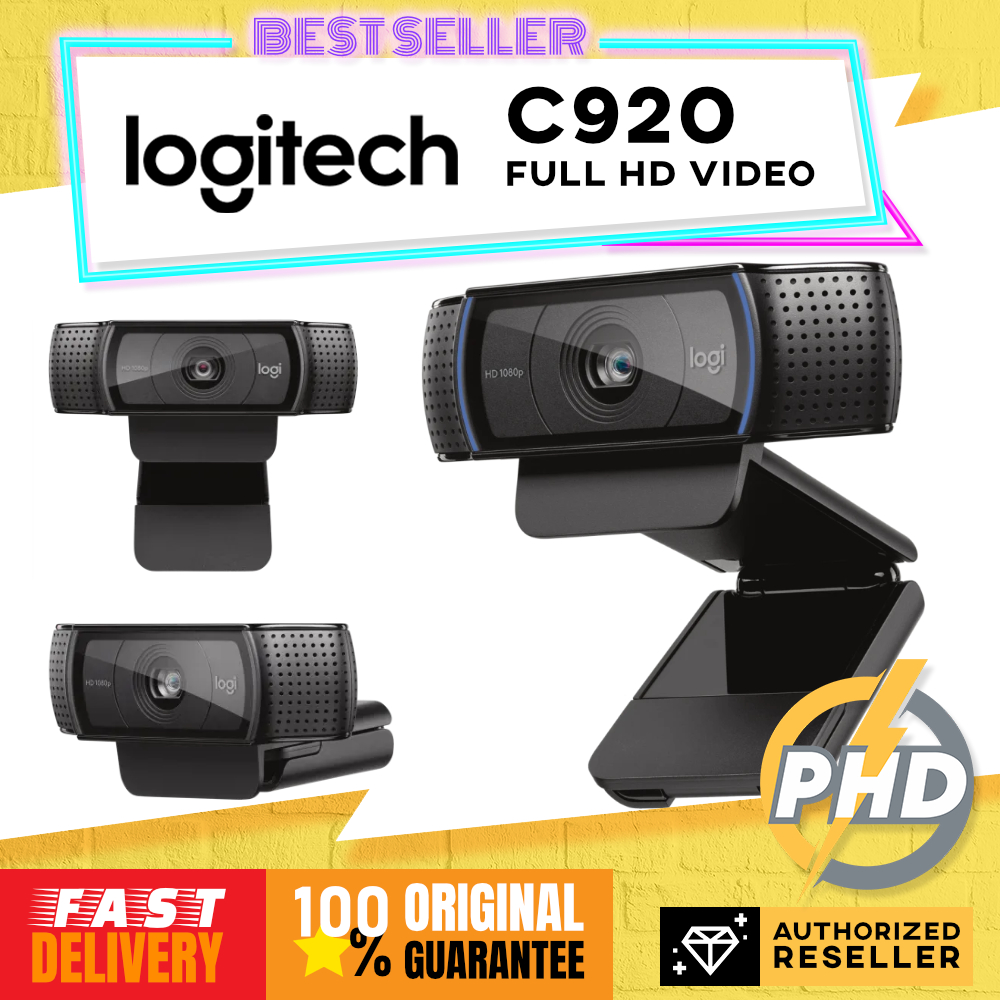
The C920x can be a clear upgrade over many basic laptop webcams because it offers Full HD resolution, a larger external lens, autofocus, and flexible positioning.
The improvement is not guaranteed in every situation. A newer laptop may already have a good camera, while a poorly lit office can make any webcam look weak. Compare the lens, resolution, lighting, microphone needs, and mounting position rather than relying on the product name alone.
The C920x is especially useful when:
- Your laptop camera is limited to low resolution.
- You want to place the camera at eye level.
- You use a desktop computer without a built-in camera.
- You need a wider view than your laptop camera provides.
- You want one webcam that can move between computers.
A built-in camera may be more convenient for travel because it requires no extra cable or mount.
C920x versus newer webcams
The C920x remains a practical 1080p webcam, but newer models may offer improved low-light processing, wider views, privacy shutters, USB-C connections, or 60 fps video.
Choose the C920x when the main need is reliable 1080p30 video for calls and basic recording. Consider a newer webcam when you need:
- 4K video
- 60 fps Full HD
- Better background control
- A physical privacy shutter
- USB-C without an adapter
- Stronger performance in dim rooms
- More advanced framing features
The deciding factor is not simply the highest resolution. A 1080p webcam with good front lighting can look better than a 4K webcam in a dark room.

Is the Logitech C920x worth buying?
The Logitech C920x is worth considering for U.S. buyers who want a dependable 1080p USB webcam for work, school, meetings, and entry-level streaming. Its main strengths are autofocus, Full HD video, a familiar USB connection, and broad support across common video applications.
It is less suitable for users who need 4K, 60 fps, professional audio, or a built-in privacy shutter. Before buying, confirm the exact model, included accessories, operating system support, USB requirements, and seller warranty.
A fair buying decision should compare the C920x with current prices and newer models at the time of purchase. Product availability and package contents can change by retailer and region.
Key takeaways
- The Logitech C920x records and streams up to 1920 × 1080 at 30 fps.
- It includes autofocus, automatic light correction, and built-in stereo microphones.
- It uses a USB-A connection and may need an adapter for USB-C-only laptops.
- Good front lighting often improves results more than changing resolution.
- It is a strong fit for calls, classes, remote work, and basic streaming.
- It is not a 4K or 60 fps webcam.
- Check the exact package before purchase, especially for privacy accessories and included software.
Frequently asked questions
Does the Logitech C920x support 1080p at 60 fps?
No. The C920x is designed for Full HD 1080p video at up to 30 frames per second. Users who need 60 fps should compare it with a webcam that specifically lists 1080p60 support.
Does the Logitech C920x have a privacy shutter?
Do not assume that it does. The C920x and C920s are different product variants, and package contents can vary. Check the exact retailer listing and model documentation before purchase.
Can the C920x work with Zoom and Microsoft Teams?
Yes, it can generally be selected as a USB camera in common video meeting applications, including Zoom and Microsoft Teams. The application must have permission to access the camera, and the webcam must be selected in the app’s video settings.
Can I use the C920x with a USB-C laptop?
Yes, if you use a USB-C adapter or hub that supports data. The webcam itself uses USB-A, so a charging-only adapter will not work.
Why does my C920x look dark?
The most likely cause is poor lighting or a bright background. Place a lamp or window in front of your face, not behind you. Clean the lens and check whether the meeting application has selected a low-quality video mode.
Is the C920x good for online teaching?
Yes. Its 1080p resolution, autofocus, and 78-degree view can work well for one-person instruction. A separate microphone may provide clearer speech, especially in a large or echo-prone room.
Does the C920x work without Logitech software?
Basic webcam functions usually work through the operating system and video application. Optional Logitech software may provide extra control, but the exact features depend on the operating system and current software support.
Conclusion
The Logitech C920x HD Pro PC Webcam is a practical 1080p30 camera for everyday computer video. It improves flexibility and often image quality over a basic built-in webcam, especially when placed at eye level and used with good front lighting.
Its limits are clear: no 4K, no 60 fps Full HD, and no guarantee of professional microphone quality or privacy hardware. For U.S. users who need a straightforward webcam for work, school, meetings, and casual streaming, the C920x can meet the need when its specifications match the task.