Introduction
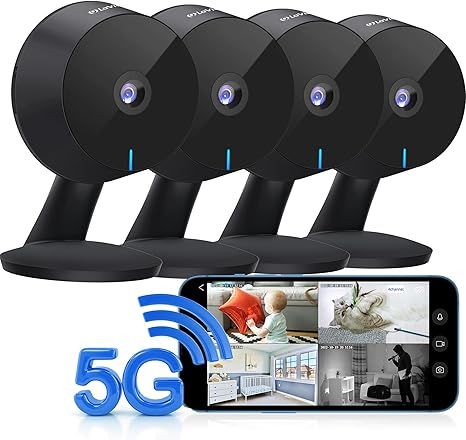
The LaView Security Cameras 4pcs Home Security Camera Indoor system is designed for U.S. homes, apartments, dorms, small offices, and indoor spaces that need simple video monitoring. A four-camera kit can help you watch several rooms at once, such as an entry hall, living room, nursery, garage, or home office.
The exact features depend on the LaView model and package sold. Some versions may support Wi-Fi, a mobile app, night vision, motion alerts, two-way audio, cloud storage, or a microSD card. Check the model number on the box or product page before you buy, because LaView has released several indoor camera kits with different specifications.
This guide explains what to check, how to set up the cameras, how storage and alerts work, and which limits matter for privacy and daily use.

What Is Included in a LaView 4-Camera Indoor Kit?
A four-camera LaView indoor kit usually includes four camera units and the basic power equipment needed for indoor use. The exact contents can change by model, seller, and package revision.
Common items may include:
- Four indoor security cameras
- Four power adapters or USB power cables
- Mounting hardware
- Quick-start instructions
- A mobile app connection
- Optional storage support, such as cloud recording or a microSD card slot
Some packages may include fewer power adapters than cameras or may require a separate memory card. Review the box contents before installation. A camera that needs constant power cannot work as expected if the correct adapter or cable is missing.
The product name alone does not confirm every feature. Verify these details for the exact model:
| Feature to check | Why it matters |
|---|---|
| Video resolution | Affects image detail and storage use |
| Wi-Fi band | Many indoor cameras use 2.4 GHz Wi-Fi |
| Mobile app | Controls setup, live view, alerts, and playback |
| Night vision | Helps in dark rooms |
| Motion detection | Sends alerts when movement is detected |
| Two-way audio | Allows communication through the camera |
| Local storage | May reduce the need for a subscription |
| Cloud storage | Adds remote backup but may cost extra |
| Pan and tilt | Expands the view in some models |
| Indoor-only rating | Confirms that the camera is not made for rain or outdoor exposure |
If the listing does not state a feature clearly, treat it as unconfirmed. Do not assume that all LaView four-camera kits use the same app, storage plan, or video resolution.
Main Features to Evaluate
Video quality and viewing angle
Video resolution tells you how many pixels the camera records. A higher resolution can show more detail, but image quality also depends on lighting, lens design, Wi-Fi strength, compression, and camera placement.
For most indoor uses, the most useful test is practical:
- Can you recognize a person at the room’s far end?
- Can you read a package label near the door?
- Is the image clear in both daylight and low light?
- Does the camera keep a stable live view?
- Does the lens show enough of the room?
A wide viewing angle may cover more space, but it can make distant objects look smaller. A narrower view may show more detail in one area while leaving blind spots near the sides.
Night vision
Indoor security cameras often use infrared light to create a black-and-white view in darkness. Night vision can help monitor a hallway or room with the lights off, but it does not guarantee clear facial detail at every distance.
Reflective surfaces can reduce image quality. Glass, mirrors, glossy walls, and nearby white objects may cause glare or bright spots when infrared light turns on. Place the camera at an angle rather than pointing it directly at a window or mirror.
Motion alerts
Motion detection can send a notice to your phone when the camera sees movement. This can be useful for entry areas, pets, children, or a room that should remain empty.
Alerts may become noisy in busy rooms. Fans, curtains, sunlight, pets, and changing shadows can create unwanted notices. If the app supports activity zones, sensitivity controls, or schedules, use them to reduce false alerts.
A motion alert is not the same as professional alarm monitoring. It normally depends on the camera, home network, phone settings, and app service working at the same time.
Two-way audio
Two-way audio uses a built-in microphone and speaker. It may help you speak with a family member, check on a child, or warn someone away from a private area.
Audio quality can vary with distance and background noise. Keep in mind that conversations captured by a camera may create privacy concerns. Tell household members and guests about indoor audio recording where required by applicable law.
Pan, tilt, and fixed views
Some LaView indoor cameras can move through the app. Others use a fixed lens. A moving camera can cover more of a room, but it may leave an area unmonitored when pointed elsewhere.
A fixed camera gives a steady view of one location. Four fixed cameras can still provide strong coverage when placed carefully. The best choice depends on whether you value a wider area or a constant view of a specific door, crib, desk, or hallway.

How to Set Up Four LaView Indoor Cameras
Set up the cameras near your router before mounting them. This makes it easier to solve connection problems and confirm that every unit works.
What you need before setup
Prepare these items:
- The four cameras and their power supplies
- A compatible smartphone
- The current LaView app named in the product instructions
- Your home Wi-Fi name and password
- A stable power outlet near each planned location
- A microSD card only if the exact model supports local storage
- A ladder only when needed, used with care
Many smart cameras require a 2.4 GHz Wi-Fi network. Some newer devices support both 2.4 GHz and 5 GHz networks. The product manual is the final authority for the supported band.
Step-by-step setup
-
Identify the exact model.
Find the model number on the camera, box, label, or manual. Use that number when checking the app and support instructions. -
Install the official app.
Download the app from the Apple App Store or Google Play. Avoid unofficial app files or links from unknown sources. -
Create or sign in to your account.
Use a unique password. Turn on two-factor authentication if the app provides it. -
Power one camera first.
Start with one unit rather than connecting all four at once. Wait for the status light or voice prompt described in the manual. -
Add the camera in the app.
Follow the pairing steps. The app may display a QR code that the camera must scan or ask you to connect to a temporary device network. -
Connect to the correct Wi-Fi network.
Enter the network password carefully. Avoid guest networks that block communication between devices unless the camera manual confirms compatibility. -
Name the camera.
Use clear names such as “Front Hall,” “Living Room,” or “Home Office.” This reduces mistakes when several cameras send alerts. -
Update the firmware.
If an update is offered, install it while the camera has stable power and Wi-Fi. Do not unplug the device during the update. -
Repeat the process for the other three cameras.
Add each camera separately and confirm its name before mounting it. -
Test live view and alerts.
Walk through the monitored area, check playback, and confirm that your phone receives the expected notice.
Signs that setup worked
A successful setup usually includes these signs:
- The camera appears online in the app.
- Live video loads without repeated disconnections.
- The camera shows the correct room.
- Motion creates an alert when alerts are enabled.
- The time and date appear correctly.
- Night vision changes as the room becomes dark.
- Playback works for the selected storage method.
If one camera fails, test it near the router. If it works there but not in its final location, distance, walls, interference, or network congestion may be the cause.

Best Camera Placement for a U.S. Home
Camera placement affects usefulness more than the number printed on the resolution specification. Place each unit where it covers a clear path or important room feature without creating unnecessary privacy exposure.
Useful indoor locations may include:
- The main entry area
- A hallway between bedrooms and doors
- A living room
- A home office
- A nursery, with careful privacy controls
- A garage entry door, if the camera is protected from unsuitable conditions
- A stair landing
Avoid placing cameras where they record private activities unless every affected person understands and agrees to the arrangement. Do not point an indoor camera through a window and expect outdoor performance. Glass can cause glare, reflections, and night-vision problems.
Placement tips
Mount or place the camera:
- Near a power outlet
- Above eye level when practical
- Away from direct sunlight
- Away from steam, water, and heat
- Where the Wi-Fi signal remains stable
- At an angle that reduces glare
- Where the power cable cannot become a trip or strangulation hazard
Do not hide a camera in a way that creates a safety or privacy problem. Keep cameras visible in shared spaces, and follow applicable federal, state, and local rules for audio and video recording.
A simple four-camera layout
A basic layout for a small home might use:
- One camera facing the primary entry hall
- One camera covering the living area
- One camera watching a rear hallway or secondary entry
- One camera in a home office, nursery, or other priority room
This is only a starting point. The right layout depends on walls, doors, room shape, household routines, and Wi-Fi coverage.
Storage: Cloud, microSD, or No Recording?
Storage determines how you review an event after it happens. A live camera may show what is happening now, but recorded video helps you examine earlier activity.
Local microSD storage
If the model supports a microSD card, local storage may allow recordings to remain in the camera or card. Check the manual for supported card type, capacity, formatting, and recording modes.
Local storage can reduce subscription costs, but it has limits:
- A thief could remove or damage the camera.
- A failed card can interrupt recording.
- Storage fills over time.
- The app may require formatting before use.
- Playback may depend on the camera staying connected.
Use a reputable card made for continuous recording. Replace it when the app reports errors or when recordings become unreliable.
Cloud storage
Cloud recording stores video on a remote service. It can help preserve clips if the camera is damaged or removed. However, cloud plans may have monthly or annual fees, limits on video history, and account requirements.
Check the current plan terms for:
- Number of cameras covered
- Clip length
- Retention period
- Download rights
- Person or vehicle detection
- Whether recordings remain available after cancellation
- Whether the plan is required for basic recording
Prices and plan terms can change, so confirm them on the current U.S. product page or inside the official app.
No recording plan
Some owners use cameras only for live viewing and alerts. This may be enough for checking a room or speaking to someone at home. It is not enough if you need a long record of past events.
A useful rule is simple: choose storage based on what you need to do after an alert, not only on what you want to see live.

Privacy and Account Security
Indoor cameras can capture sensitive parts of daily life. Treat the camera account like a smart-home account, not like a casual app login.
Use these protections:
- Create a unique password.
- Turn on two-factor authentication when available.
- Keep the camera app and phone updated.
- Install firmware updates from the official app.
- Review account access and remove old users.
- Use a strong home Wi-Fi password.
- Avoid sharing camera login details.
- Disable the microphone when you do not need audio.
- Use privacy mode or unplug the camera during private activity.
- Check whether guests or household members can view recordings.
Audio deserves special care. U.S. recording laws differ by state, and audio rules may be stricter than video rules. The legal answer can depend on consent, location, purpose, and the people being recorded. If you plan to record conversations, seek advice based on your state and situation.
A camera should support household safety without removing reasonable privacy. Place it where the benefit is clear and the recording scope is limited.

Troubleshooting LaView Indoor Cameras
Use the safest and most useful checks first. Do not open the camera housing or modify its power supply.
The camera will not connect
Try these steps:
- Confirm that the camera has power.
- Check the status light or sound described in the manual.
- Move the camera close to the router.
- Confirm the Wi-Fi name and password.
- Check whether the camera requires 2.4 GHz Wi-Fi.
- Restart the camera and router.
- Update the app.
- Reset the camera only after noting that reset may erase its network settings.
If all four cameras fail at once, inspect the router, internet connection, and app account first. If only one camera fails, test its cable, adapter, outlet, and location.
Live video keeps buffering
Buffering may result from weak Wi-Fi, network congestion, a distant camera, or a busy phone connection. Move the camera temporarily near the router. If the video becomes stable, improve Wi-Fi coverage rather than repeatedly resetting the camera.
A mesh system or access point may help, but compatibility and network setup vary. Place network equipment in an open area, not inside a metal cabinet or behind thick objects.
Motion alerts are missing
Check whether:
- Motion detection is enabled
- The camera is online
- Notifications are allowed on the phone
- The app is allowed to run in the background
- A schedule is blocking alerts
- Sensitivity is too low
- The camera view is blocked
- The selected activity zone excludes the movement
Test with a person walking across the camera view. A small object moving at the edge of the frame may not trigger the same way.
The night image is bright or unclear
Remove nearby reflective objects, clean the lens with a soft dry cloth, and move the camera away from windows. Do not cover infrared lights or place the camera behind glass unless the model specifically supports that use.
The app cannot play recordings
Check the storage method, available space, account status, camera time, and internet connection. A local card may need formatting or replacement. Cloud playback may depend on an active plan or a retention period that has already ended.

Advantages and Limitations of a Four-Camera Kit
A four-camera package can be practical when several indoor areas need coverage. It may cost less and require less setup than buying four separate cameras, especially when the units use one app.
Potential advantages
- Coverage for several rooms
- One account and app for multiple cameras
- Consistent controls across the system
- Easier naming and alert management
- A useful starting point for a small home
Important limitations
- All cameras may depend on the same Wi-Fi network
- Indoor cameras are not automatically weatherproof
- Cloud features may require a paid plan
- Four cameras can create many alerts
- Power cables limit placement
- A fixed camera can leave blind spots
- Video quality may vary in low light
- A camera alert is not the same as emergency response
- Internet loss may affect remote viewing and cloud recording
A four-camera kit fits best when you want basic indoor monitoring and can provide stable power and Wi-Fi. Consider a different system if you need outdoor protection, cellular backup, professional monitoring, long-term video retention, or advanced local recording.

Buying Checklist for the LaView 4pcs Indoor Camera System
Before ordering, confirm the following details on the exact U.S. listing or manual:
- Exact model number
- Number of cameras and power adapters
- Required mobile app
- Supported Wi-Fi bands
- Video resolution
- Night-vision range, if documented
- Motion detection controls
- Two-way audio
- Pan and tilt functions
- microSD support and maximum capacity
- Cloud plan requirements and fees
- Warranty and return terms
- Indoor-only limitations
- Compatibility with your phone
- Whether the cameras can operate without cloud service
- Whether the package includes mounting hardware
Do not choose based only on “4K,” “HD,” “smart,” or “security camera” wording. The deciding factors are often storage, app support, alert quality, Wi-Fi behavior, and privacy controls.
For a renter, a tabletop setup may be better than permanent mounting. For a homeowner, mounting can improve the viewing angle and reduce accidental movement. For a family, simple alerts and easy user sharing may matter more than the highest stated resolution.

Frequently Asked Questions
Are LaView four-camera indoor systems wireless?
They may use wireless Wi-Fi for data, but most indoor cameras still need a power cable. “Wireless” often means wireless network connection, not battery operation. Check the exact model before assuming the cameras run without cords.
Do LaView indoor cameras need Wi-Fi?
Wi-Fi is commonly needed for app-based live viewing, remote access, and cloud features. Some models may support local recording, but that does not necessarily mean every feature works without internet access.
Can I use these cameras outdoors?
Do not use an indoor model outdoors unless the manufacturer gives it a suitable weather-resistance rating. Rain, condensation, heat, cold, and direct sunlight can damage indoor equipment and may affect warranty coverage.
Do I need a subscription?
That depends on the model and the feature. Basic live viewing may work without a paid plan, while cloud recording, longer video history, or advanced detection may require a subscription. Confirm the current terms for the exact U.S. model.
How many cameras should monitor a home?
The number depends on room layout, entry points, privacy needs, and the level of detail required. Four cameras can cover several priority areas, but they may not cover every room or outdoor approach. Start with entry routes and spaces where an alert would lead to a useful action.
Final Recommendation
The LaView Security Cameras 4pcs Home Security Camera Indoor kit can suit U.S. households that want several indoor viewing points through one app. Its value depends less on the camera count than on the exact model, Wi-Fi reliability, storage method, alert controls, and privacy features.
Before installation, verify the model number and package contents. Then test each camera near the router, update the firmware, choose careful placements, and confirm how recordings are stored. If you need outdoor coverage, battery operation, professional monitoring, or guaranteed recording during an internet outage, compare the kit with a system built for those needs rather than assuming an indoor four-camera package will provide them.