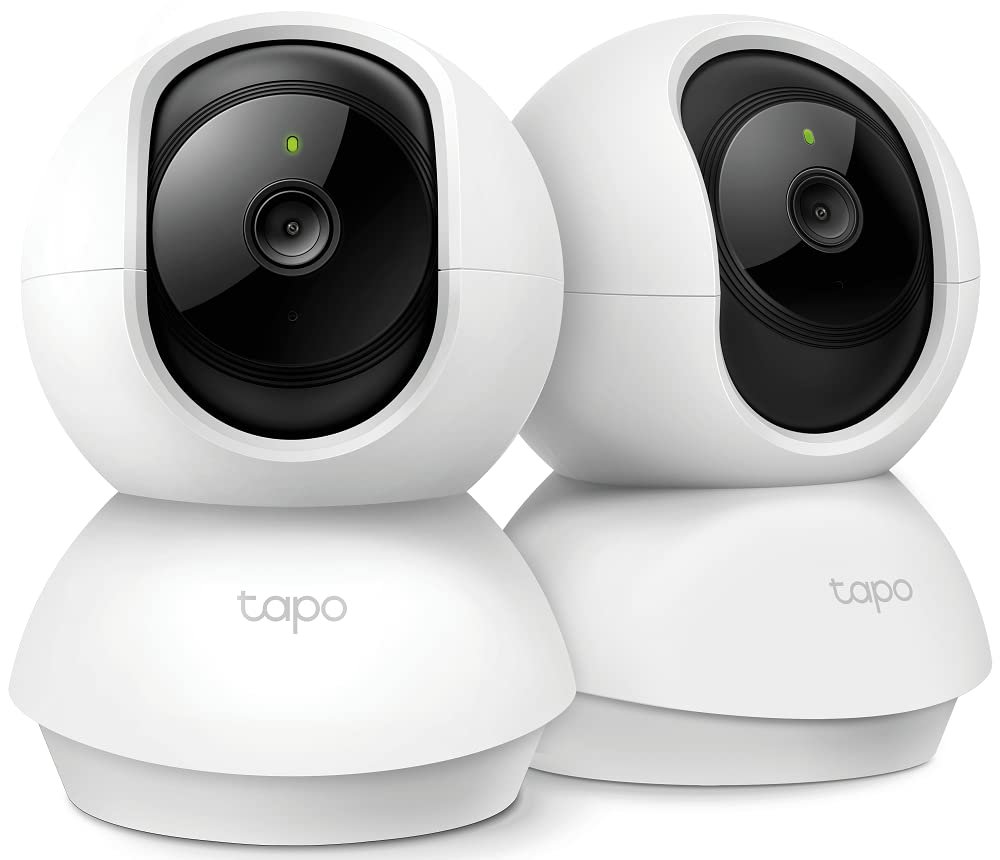
For families in the United States, a TP-Link Tapo 1080p indoor camera can work as a low-cost baby monitor when placed and configured with care. It can show live video, send motion or sound alerts, support two-way talk, and provide night vision. It is not a medical monitor, and it should not replace direct supervision, a safe sleep setup, or a dedicated alarm for breathing or vital signs.
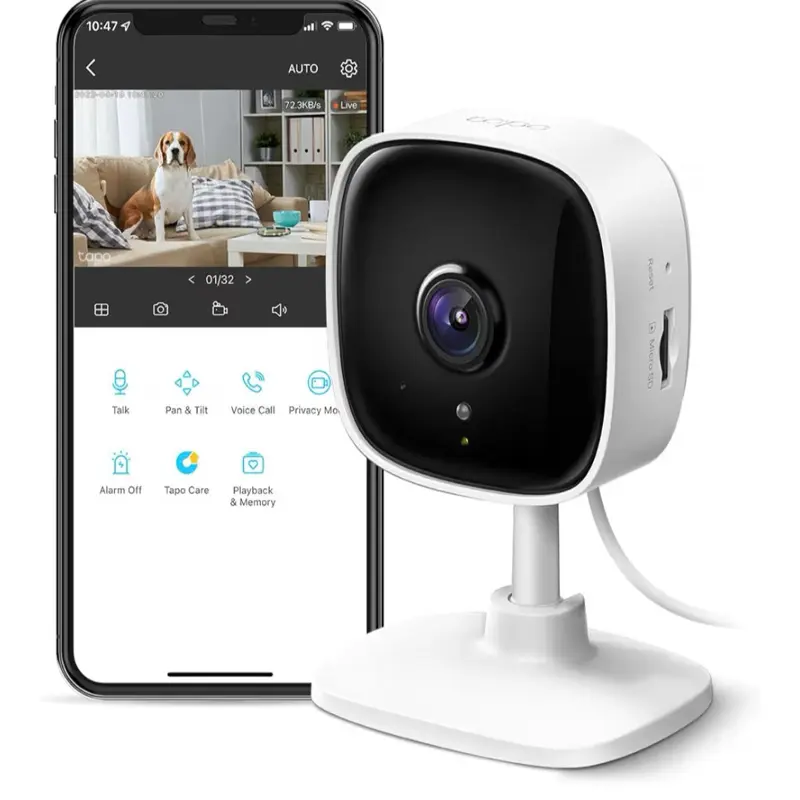
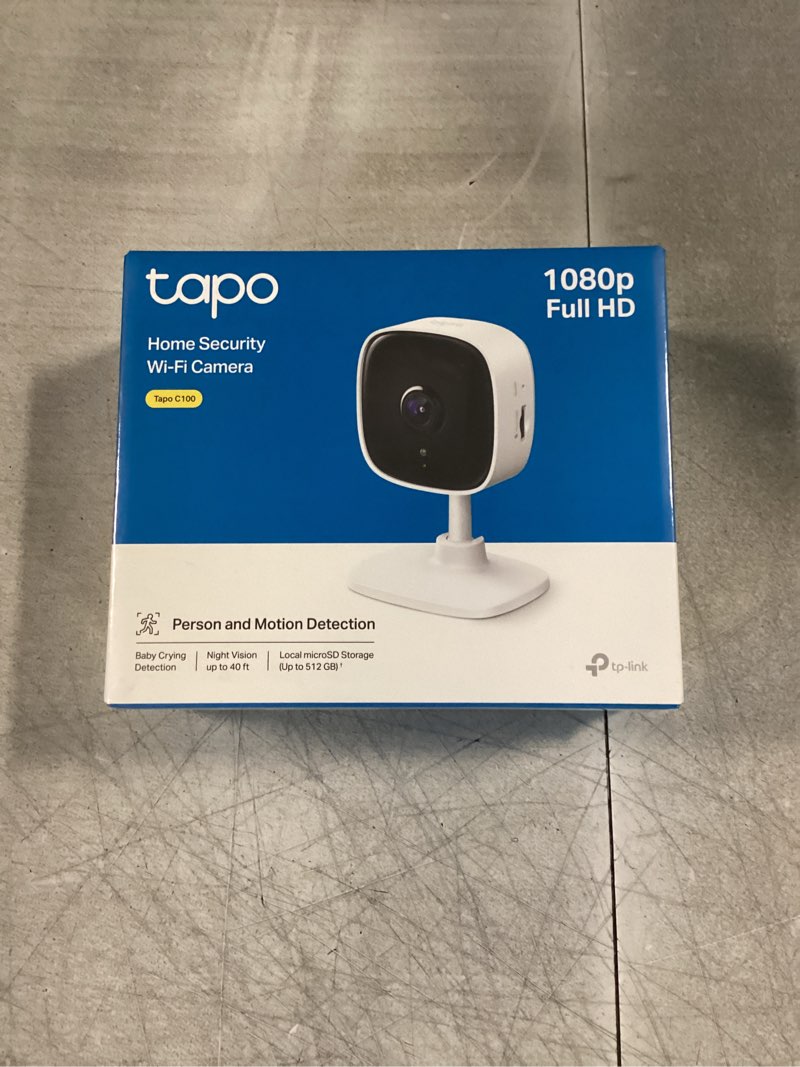
“TP-Link Tapo 1080p indoor camera” can describe more than one model. The fixed Tapo C100 and the pan-and-tilt Tapo C200 are common examples. Check the model number on the box or camera before buying, because features, storage limits, and app menus can vary by model and region.

Quick Takeaways
- A Tapo 1080p camera can monitor a nursery from a phone through the Tapo app.
- A fixed model is simple and often costs less. A pan-and-tilt model can cover more of the room.
- The camera normally needs a 2.4 GHz Wi-Fi network.
- Local microSD recording may reduce cloud costs, but the card is not a backup.
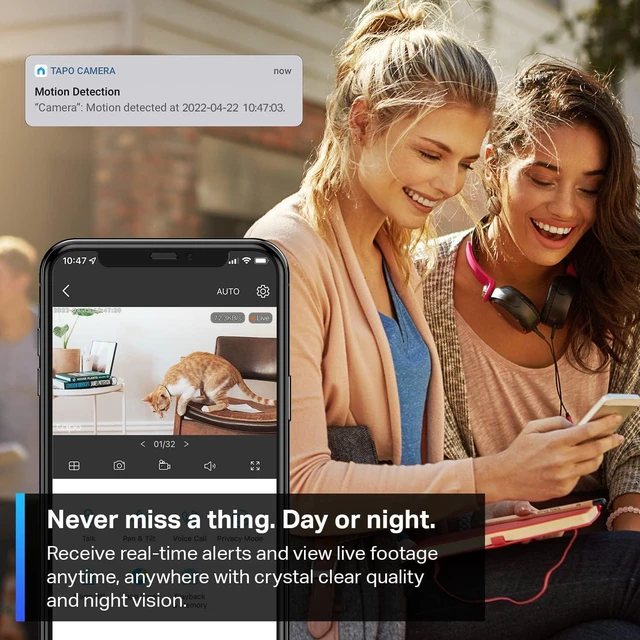
- Motion, sound, or crying alerts may be useful, but they can miss events or create false alerts.
- Place the camera well away from the crib, bassinet, and reachable cords.
- Do not use the camera as a breathing, heart-rate, or medical safety device.
What Is the TP-Link Tapo 1080p Indoor Camera?
A TP-Link Tapo 1080p indoor camera is a network camera made for indoor video monitoring. “1080p” means the camera records or displays video at up to 1,920 × 1,080 pixels. That resolution can show useful detail in a nursery, but it does not guarantee clear video in every room or lighting condition.
The camera connects to Wi-Fi and sends video to the Tapo mobile app. Depending on the exact model, it may also offer:
- Infrared night vision
- Motion detection
- Sound or baby-cry detection
- Two-way audio
- A built-in siren or light alarm
- Local recording to a microSD card
- Optional cloud storage through Tapo Care
- Privacy mode
- Pan and tilt on selected models
The fixed Tapo C100 is designed to view one area. The Tapo C200 adds motorized pan and tilt, so you can change the viewing angle from the app. A moving lens can cover a larger room, but it also creates more privacy and setup considerations.
TP-Link’s official product pages and user guides are the best sources for model-specific details. Features may change by firmware, app version, and country. In the United States, confirm the exact model number before comparing cameras.

Is a Tapo 1080p Camera Good for a Baby Monitor?
A Tapo 1080p camera can be a practical baby monitor for video, room checks, and basic alerts. It may suit parents who want phone access, night vision, and two-way talk without buying a separate monitor system.
Its main limits matter more than the pixel count. The camera depends on Wi-Fi and power. If the router, internet service, app, or camera loses connection, remote viewing may stop. Local recording can continue in some situations, but live phone access may not.
A Tapo camera also does not measure breathing, oxygen, body temperature, or heart rate. Sound detection is not the same as a medical alert. A quiet camera feed does not prove that a child is safe.
Best uses
A Tapo camera can help you:
- Check whether a baby is awake.
- See whether a child is in the crib.
- Speak through the camera.
- Watch a room at night.
- Receive an alert after detected motion or sound.
- Review a short event on local or cloud storage, if enabled.
Situations that need caution
Think twice before relying on the camera when:
- Your Wi-Fi service is unstable.
- You need alerts during an internet outage.
- You need a portable, battery-powered monitor.
- The child can reach the camera or its cable.
- You need certified medical monitoring.
- You need a monitor with a parent unit that works without a phone.
Bottom line: The Tapo camera can support normal visual supervision, but it should be a supplement rather than the only safety system.
Tapo 1080p Camera Features That Matter for Baby Monitoring
The most useful feature is not always the highest resolution. For a nursery, reliability, night performance, alert control, and safe placement often matter more.
1080p video
Full HD video can show a child’s position, movement, and general condition. It may also help you see whether a blanket or toy has entered the sleep area.
Video quality depends on more than resolution. Room light, lens position, Wi-Fi strength, compression, and digital zoom all affect the image. Digital zoom enlarges pixels; it does not create new detail.
Night vision
Infrared night vision lets the camera view a dark room without turning on a bright lamp. The result may look black and white.
Do not point the camera through glass or directly at a strong light. Reflections and glare can reduce the image. A small night-light may help the camera show color, but it can also affect sleep or create shadows.
Two-way audio
Two-way audio lets you listen and speak through the Tapo app. It may help you soothe an older infant or tell another caregiver that you are coming.
Treat it as a short communication tool, not a replacement for checking the child. Sound can be delayed, and the microphone may pick up fans, white-noise machines, or household activity.
Motion and sound alerts
Alerts can notify you when the camera detects movement or sound. Sensitivity settings are important. A high setting may send many alerts from a fan, changing light, pet, or passing car. A low setting may miss a quiet or small movement.
If the app offers detection zones or activity types, limit monitoring to the crib or room area. This can reduce unwanted alerts.
Pan and tilt
A pan-and-tilt model can look across a room. This is useful when a child moves from a crib to a play area.
A moving camera can also point away from the intended area. Set a default position and check it before bedtime. If privacy is a concern, use privacy mode when monitoring is not needed.
Local and cloud storage
A microSD card can store video on the camera. Tapo Care is TP-Link’s optional cloud service for supported cameras and plans.
Storage choices have trade-offs:
| Storage method | Main benefit | Main limitation |
|---|---|---|
| Live view only | No recording setup | You cannot review past events |
| microSD card | Local storage and no required monthly cloud plan | The card can fail, fill up, or be removed |
| Cloud storage | Remote event access and off-site storage | May require a paid plan and internet access |
Check the exact Tapo manual for supported card capacity, recording modes, and subscription features. Format a new card in the app if the model supports that option.

How to Set Up a TP-Link Tapo Camera as a Baby Monitor
Set up the camera before using it at night. This gives you time to test alerts, sound, video, and placement.
What you need
Prepare:
- The Tapo camera and power adapter
- A supported smartphone
- The current Tapo app
- A 2.4 GHz Wi-Fi network, if required by the model
- Your Wi-Fi password
- A stable indoor power outlet
- A microSD card, if you want local recording
Use the official Tapo app from the Apple App Store or Google Play. Avoid unofficial app downloads.
Step 1: Install the Tapo app
Create or sign in to a TP-Link account. Use a unique password that you do not reuse on other sites.
Turn on account security features offered by TP-Link, such as two-step verification, if available for your account and region.
Step 2: Add the camera
Open the app and choose the option to add a device. Select the correct camera model.
Follow the pairing instructions. The app may ask you to connect your phone to a temporary camera network or show a QR code to the camera lens.
Step 3: Connect to Wi-Fi
Connect the camera to the home network shown in the app. Many Tapo indoor cameras use 2.4 GHz Wi-Fi rather than 5 GHz.
If setup fails:
- Move the camera near the router.
- Confirm the Wi-Fi password.
- Turn off a phone VPN during setup if it interferes.
- Check that the router allows new devices.
- Restart the camera and app.
- Reset the camera only if the earlier steps fail.
A factory reset usually removes the camera’s network settings. Use the reset button and timing listed in the model’s guide.
Step 4: Update firmware
After pairing, check for a firmware update in the Tapo app. Updates may improve stability or security.
Keep the app and phone operating system current as well. Do not unplug the camera during a firmware update unless the app tells you to do so.
Step 5: Set a useful camera name
Use a clear name such as “Nursery Camera.” If you use several cameras, avoid names that reveal more personal information than needed.
Step 6: Test the image and audio
Stand where you normally sleep and check:
- Can you see the full crib or sleep space?
- Is the child’s face visible without a harsh glare?
- Can you hear normal room sounds?
- Can you speak through the camera?
- Does night vision work with the room lights off?
- Do alerts arrive on your phone?
Test the camera at different times of day. A view that looks good in daylight may show glare or deep shadows at night.
Step 7: Configure alerts
Start with moderate motion and sound sensitivity. Watch the alert pattern for a day or two.
Adjust the settings if:
- You receive alerts from normal background noise.
- The camera misses movement.
- The room has a fan, humidifier, white-noise machine, or air conditioner.
- The camera sees a window, moving curtain, or television.
Do not assume an alert will always arrive immediately. Phone settings, Do Not Disturb modes, weak Wi-Fi, and app permissions can affect notifications.
Safe Placement in a Nursery
Safe placement is more important than a wide viewing angle. Keep the camera and its cord outside the child’s reach.
The American Academy of Pediatrics advises keeping cords and other hazards away from cribs and sleep areas. The U.S. Consumer Product Safety Commission also warns about hazards from cords near children. Follow those principles when installing any corded camera.
Use these practices:
- Mount the camera high and out of reach.
- Keep the power cord away from the crib, bassinet, and changing area.
- Do not drape a cord over the crib rail.
- Do not attach the camera to a loose rail or unstable furniture.
- Keep the camera away from water, heaters, and direct sunlight.
- Secure extra cable length against the wall.
- Check the mount after moving furniture or changing the room.
- Make sure the camera cannot fall into the sleep space.
A wall mount may give a better view than a shelf. If you use a shelf, make sure it is stable and far enough away that the child cannot pull it down.
Never place a camera inside a crib, bassinet, play yard, or other child sleep space.

Privacy and Security Settings for a Tapo Baby Monitor
A nursery camera collects sensitive video and audio. Reduce access to the camera and protect the home network.
Use a strong account password
Create a long, unique password for the TP-Link account. Do not share the same password with email, banking, or social accounts.
If more than one caregiver needs access, use the app’s account-sharing or device-sharing controls when available. Avoid giving everyone the main account password.
Update the camera and app
Install firmware and app updates from official sources. Security updates can address known problems and improve compatibility.
Enable automatic updates only if you understand how the setting works. Check the camera after an update to confirm that recording and alerts still work.
Secure the home Wi-Fi network
Use WPA2 or WPA3 security if supported by your router. Avoid using an open guest network for the camera unless you understand the router’s isolation settings.
Change the router’s default administrator password. Keep the router firmware current.
Use privacy mode
Turn on privacy mode when you do not want the camera to view or record. Confirm how the model handles audio, storage, and cloud functions in this mode.
A physical lens cover offers a clear visual signal, but not every Tapo model has one.
Limit who can view the camera
Review shared users in the Tapo app. Remove people who no longer need access.
Be careful when placing the camera in a room where guests, caregivers, or older children may expect privacy. Tell people when video or audio monitoring is active.

Common Problems and Fixes
The camera will not connect
Likely causes: Wrong Wi-Fi band, weak signal, incorrect password, or router restrictions.
Try this:
- Place the camera close to the router.
- Confirm that the model supports your Wi-Fi band.
- Re-enter the password.
- Restart the router and camera.
- Check whether the router has reached its device limit.
- Reset and pair the camera again if needed.
Live video keeps buffering
Likely causes: Weak Wi-Fi, network congestion, poor camera placement, or limited internet upload speed.
Move the camera closer to the router or use a suitable mesh access point. Reduce video quality if the app allows it. Test the camera when other devices are not using large amounts of bandwidth.
Night vision looks too bright
Likely causes: The camera faces a wall, window, lamp, or reflective surface.
Move the camera or remove the reflective object. Do not aim infrared night vision through a window. The glass can reflect the camera’s infrared light back into the lens.
Alerts arrive too often
Lower motion or sound sensitivity. Use an activity zone if available. Move the camera away from fans, windows, televisions, and busy hallways.
Alerts do not arrive
Check app notification permissions, phone focus modes, battery-saving settings, and the camera’s alert schedule. Confirm that the camera is online.
Send a test alert by creating safe movement in the detection area. Do not test by disturbing a sleeping child.
The camera shows the wrong area
A fixed model may simply need to be moved. A pan-and-tilt model may need its viewing position reset in the app.
Check the live view before each sleep period if the camera has been moved or bumped.
The microSD card is not detected
Use a compatible card listed in the manual. Insert it with the camera powered off when the instructions require that step. Format the card in the Tapo app if the option is available.
Replace the card if it repeatedly disconnects, produces missing clips, or reports errors. A memory card is a consumable part and should not be treated as permanent storage.

Tapo 1080p vs. a Dedicated Baby Monitor
A Tapo camera and a dedicated baby monitor serve similar needs but use different designs.
| Need | Tapo indoor camera | Dedicated baby monitor |
|---|---|---|
| Phone access | Usually supported | Depends on model |
| Separate parent screen | Usually no | Often included |
| Wi-Fi dependence | Usually yes | Some models use a direct radio link |
| Remote viewing away from home | Possible with internet | Often limited or unavailable |
| Local recording | Often supported | Varies |
| Medical monitoring | No | Usually no, unless specifically regulated and documented |
| Setup | App and Wi-Fi required | Often simpler |
| Multi-room use | Convenient with several cameras | Depends on system |
Choose a Tapo camera when phone access, remote viewing, and smart alerts matter. Choose a dedicated monitor when you want a separate parent unit, simpler local use, or less dependence on home internet.
A camera marketed with breathing or sleep tracking deserves extra scrutiny. Read the instructions and regulatory information carefully. Do not treat consumer wellness features as a diagnosis or emergency warning.

Important Limitations
A 1080p label does not tell you whether the camera will meet every nursery need.
The camera may fail to help when:
- The power adapter is unplugged.
- The Wi-Fi network goes down.
- The internet connection fails.
- The app is logged out.
- Phone notifications are silenced.
- The lens is blocked.
- The camera points away from the sleep area.
- A memory card fails.
- A software update changes a setting.
- The child is outside the camera’s view.
Check the child directly when you have a concern. If a child appears unresponsive, has trouble breathing, or faces an immediate danger, follow emergency guidance and contact emergency services in the United States by calling 911.
For safe sleep decisions, follow guidance from your child’s pediatrician and current recommendations from trusted U.S. health authorities. A camera can help you see a room, but it cannot make an unsafe sleep environment safe.
Choosing the Right Tapo Model
The model number should guide your decision more than the phrase “1080p.”
| Camera type | Best fit | Trade-off |
|---|---|---|
| Fixed 1080p model, such as a C100-style camera | One crib or room area | Limited view after installation |
| Pan-and-tilt 1080p model, such as a C200-style camera | Larger room or changing viewing needs | More moving parts and privacy choices |
| Higher-resolution Tapo model | More image detail or digital cropping | May cost more and may use more storage |
Check the current U.S. product page for:
- Resolution
- Pan and tilt range
- Night-vision distance
- Detection types
- microSD support
- Cloud plan requirements
- Wi-Fi requirements
- Warranty terms
- App and operating-system compatibility
Do not assume that two Tapo cameras with similar names have the same features. The exact hardware and firmware version controls the result.

Frequently Asked Questions
Does the Tapo 1080p camera work without Wi-Fi?
The camera needs a network connection for normal app-based live viewing. Some models can record to a microSD card during an internet outage, but the exact behavior depends on the model and setup. Confirm this in the user guide before relying on local recording.
Does a Tapo camera need a subscription?
Basic live viewing and some local recording functions may work without a cloud subscription. Tapo Care adds cloud features for supported models and plans. Check the current U.S. plan details before buying based on cloud storage.
Can the Tapo camera detect a baby crying?
Some Tapo models and firmware versions offer sound or baby-cry detection. This feature is not a guarantee that every cry will be detected. Background noise, distance, sensitivity, and room acoustics can affect results.
Can I use a Tapo camera without a microSD card?
Yes, if you only need live viewing and supported alerts. You will not have local playback or continuous local recording without a card.
Is a Tapo indoor camera safe to use in a baby’s room?
The camera can be used in a nursery when installed safely. Keep it and its cord well away from the crib and out of reach. Do not place it inside the sleep space, and do not use it as a medical monitor.
Can two parents view the same Tapo camera?
The app may support device sharing or shared accounts, depending on the model and current software. Use the official sharing feature when available instead of sharing your main password.
Final Recommendation
The TP-Link Tapo 1080p indoor security camera can be a useful baby monitor for U.S. families who want phone viewing, night vision, two-way audio, and optional recording. It is most suitable when the home has reliable Wi-Fi and the camera can be mounted safely out of reach.
Before purchase, identify the exact model. Then confirm its Wi-Fi band, alert features, storage options, subscription terms, and current U.S. support details. After setup, test the camera at night, verify alerts, secure the account, and keep direct supervision at the center of your child’s safety plan.